8.3 Tutorial for Students on Edumaps
Edumaps
1.1
Set up your Account
-
The following simple steps will set up your account:
-
- Login with Username and Password.
- Go to the my account page.
- On your profile you see, which school you belong to.
- There is also a hint that you should set up your account which links to the setup-account-page.
- There you specify your email and password. Optionally you can add your name and your class.
- Confirm and your account is set up.
- Next an email is sent to you with a link to confirm your new email address. Please click this link.
-
Your email address will help to recover your password if you forgot or lose it. Otherwise your teacher can change your password using the admin account of your school.
1.2
Remove your Data / Delete your Account
-
Remove your Data
-
If you like to delete all your data, you can open the my account page, scroll down and click „Remove Data“.
-
On the Remove Data page you can see all the data that will be deleted.
-
Note: The deletion is final and cannot be reverted.
-
Confirm by clicking the button “Remove my data”.
-
-
Delete your Account
-
To delete your account, open your my account page, scroll down and click „Delete Account“.
-
On the Delete Account page you can see all the data that will be deleted.
-
Note: The deletion is final and cannot be reverted. – Your account gets immediately deleted and cannot be used afterwards.
-
Confirm by clicking the button “Delete my account”.
2.1
Map Formats
-
Pinboards, timelines, and stickerwalls are collectively called “maps”.
-
Pinboard
-
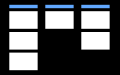
The pinboard consists of columns. Each column contains boxes.
-
Multiple columns are positioned side by side.
-
-
-
Timeline
-
The columns are horizontally arranged (“rows”). The boxes are arranged from left to right.
-
Multiple columns are positioned below each other.
-
-
-
Stickerwall
-
The boxes are freely arranged. There are no columns.
-
2.2
Ratings of Boxes
-
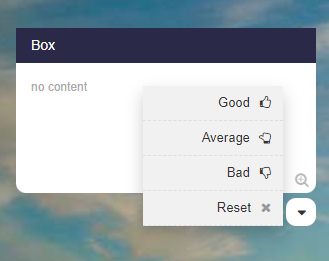
For each box a drop down can be activated that the students can use to gauge their understanding.
-
-
There are three types of ratings:
-
1. Assessment (get feedback on how the contents of a box is rated)
2. Answer (yes/maybe/no - make a poll)
3. Voting (get feedback on which option A, B or C is preferred)
2.3
Comments for Discussions and Submissions
-
Comments can be activated for each box.
-
With the help of the comment function, discussions can be held or students can submit their solutions (directly to the teacher).
-
In the comments the following inputs are possible:
-
- Text input
- Image uploads
- Audio recordings
- Uploads of media files
-
Comments can be set to be only visible to the teacher or to anyone viewing the map.
-
All comments (including uploads) can be deleted by the teacher with just one click.
-
-
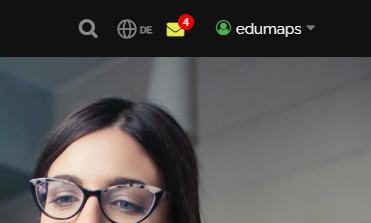
💖 Notifications about new comments are displayed directly on to the top right of the Edumaps website.
2.5
Notification of new comments
3.1
Maps of my school
-
If you click on the tab “Maps of my School” you can see all maps that your teachers published for you.