4.8 Tutorial: AI Chat Assistant
EdumapsIntroduction
-
✔️ With the AI Assistant, you can:
-
- Generate any content
- Add generated content to your map as a box
- Copy generated content with a click or download as a text file
- Have generated content read aloud
- Share your own prompts
-
✔️ The AI Assistant is compliant with data protection regulations, as communication only takes place between our server and the AI server. Your IP remains protected, as well as all your data.
-
-
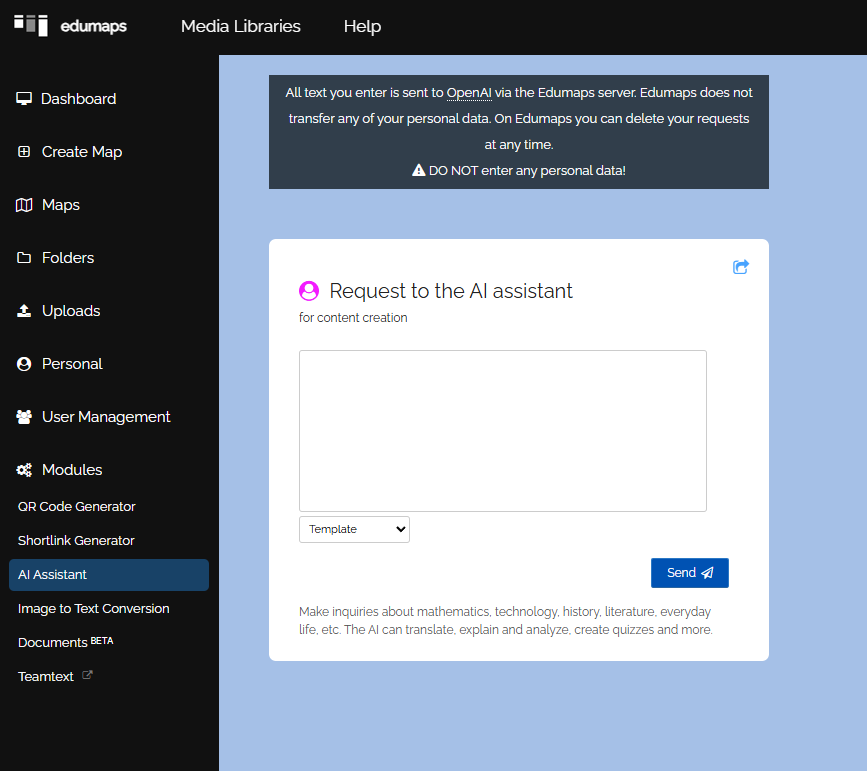
All entered texts are sent to OpenAI via the Edumaps server. Edumaps does not transmit any of your personal data. On Edumaps, you can delete your requests at any time. Do not provide any personal data.
1
Instructions
-
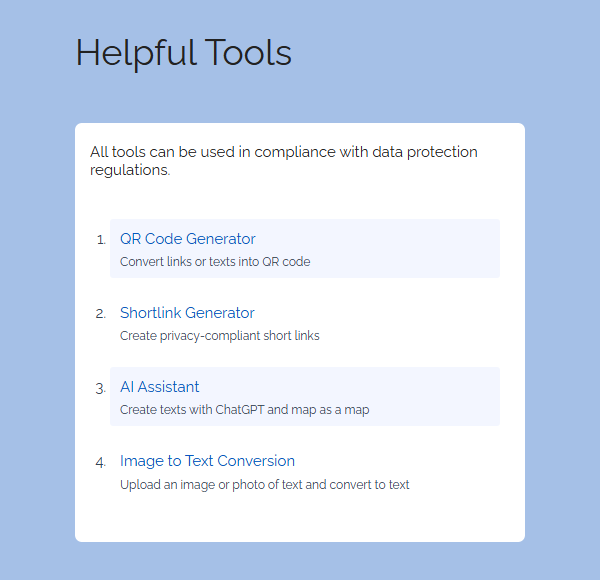
To open the AI assistant, go to “Help” at the main menu and select “Helpful Tools”. There you will find the “AI Assistant”.
-
Click on the entry, and the AI Assistant will open.
-
Now you can generate any content you want. Also, use the templates that are provided.
- You can also access the AI Assistant directly via: https://www.edumaps.de/ai
-
⚙ instructions
2
Templates for Prompts
-
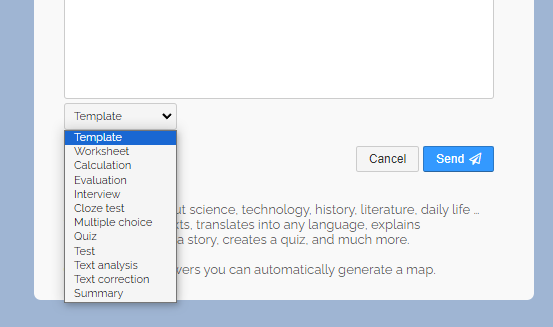
Since the capabilities of the AI assistant are almost unlimited, we have provided a few templates that can offer you a helpful framework:
-
Select one of the templates from the dropdown, and the sample request will be transferred into the text box.
-
You can then adjust this according to your preferences and finally submit it.
-
⚙ templates
3
Existing AI responses
-
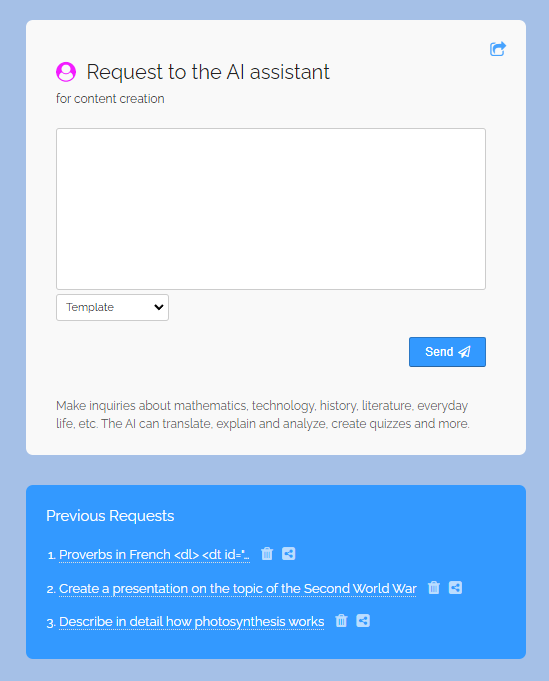
If you have already worked with the AI assistant, you will find existing responses listed right below the input field.
-
You can delete each request by clicking on the trash can icon.
-
⚙ list
4
Share AI Reply
-
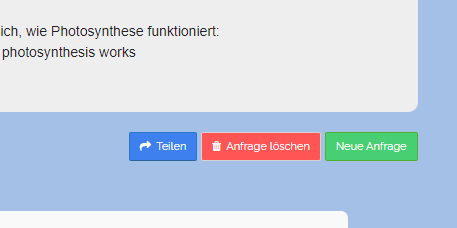
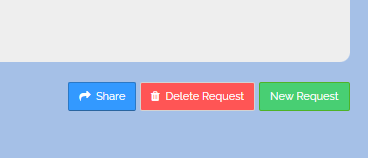
At the end of each AI response, you will find a button to share your response with third parties.
-
You do not need to be logged in to access the link.
-
5
Share Prompts
-
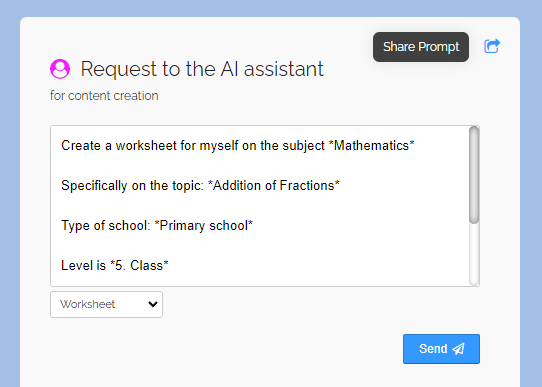
Once you have entered a prompt (a request), you can share it directly.
-
6
Read / Copy / Save an AI Answer
-
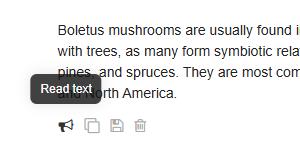
Below each AI answer, you will find buttons with additional functions.
-
You can have the AI answer read out loud, copied, saved as Markdown (a text file is created), or deleted.
-
⚙ readcopy
7
Delete AI reply
-
At the end of each AI response, you will find a red button to delete your request and the AI responses.
-
⚙ delete