

4.1 Create a Topic Map with AI
Edumaps Tutorial Edumaps
1
Menu entry to generate map
-
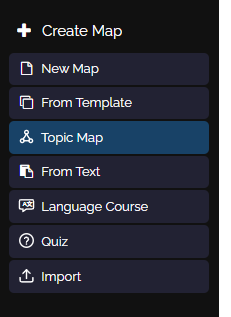
Click on “Create map” in the sidebar on the left, then select “Topic Map”.
2
Dialog: Generate map with AI
-
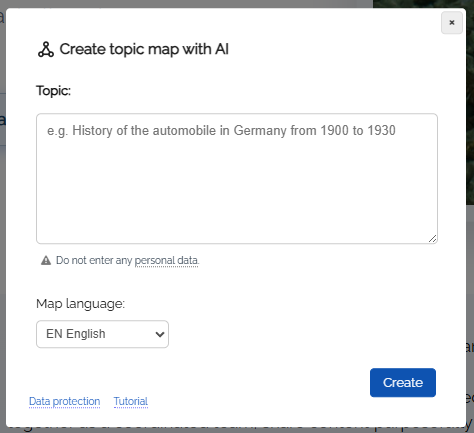
The dialog “Create map with AI” will open.
-
Here you can enter the specific topic you want your pinboard to represent.
-
Then click the “Create map” button.
-
Enter a topic of your choice, for example:
-
“Economy in Germany from 1960 to 1970”
-
You can also specify the number of boxes. For example: “Create 15 boxes on the topic …”
3
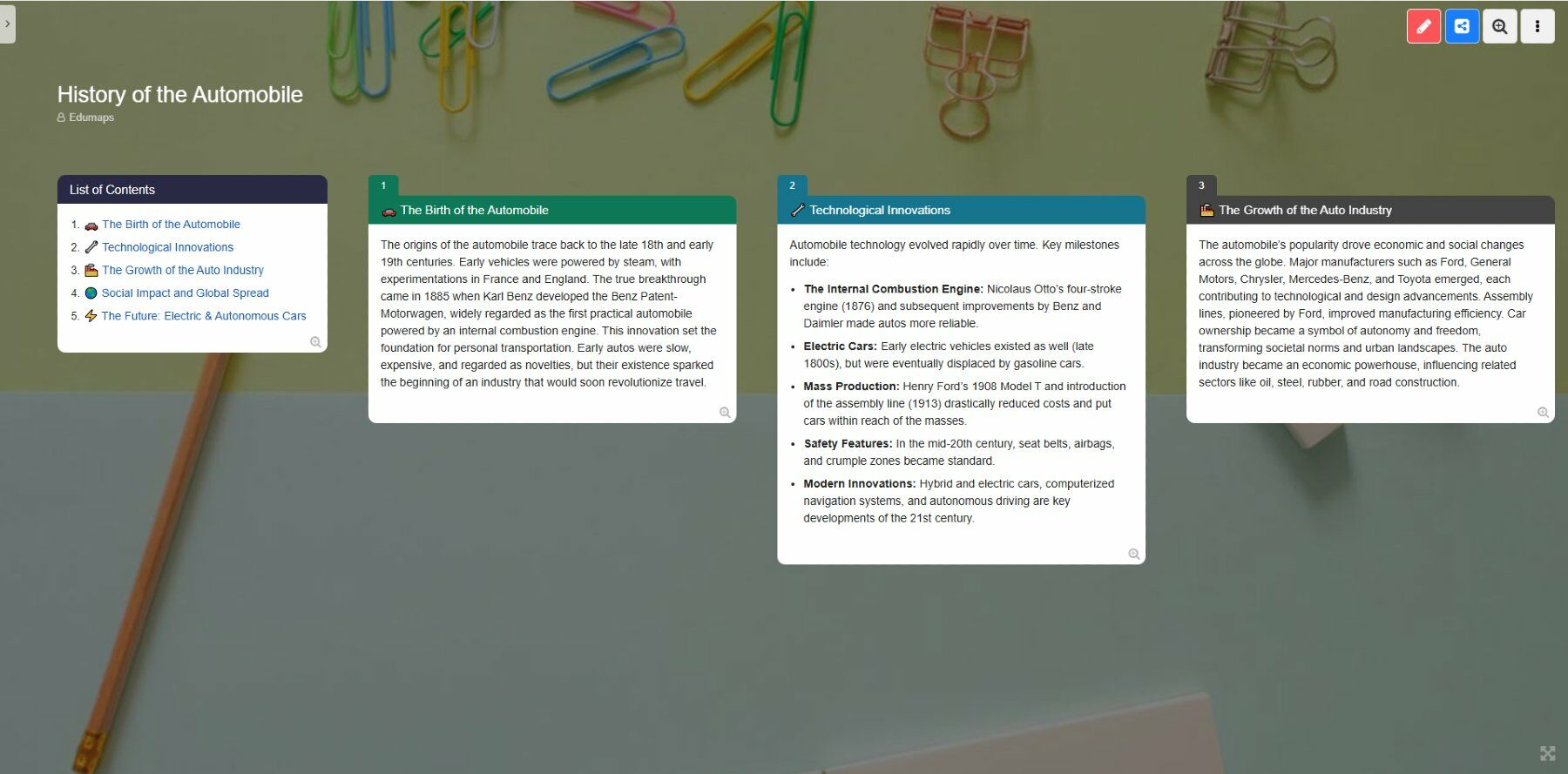
Finished pinboard
-
Automatically creating the pinboard takes around 60 seconds depending on the topic.
-
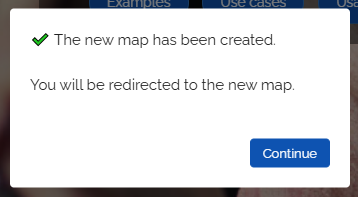
After completion, you will receive a success message:
4
Post-editing
-
You now have the option to edit the pinboard afterwards as desired.
-
- You can directly change the content in the boxes yourself.
- You can add speech synthesis to texts.
- In the box menu, you can click on “Media search” to add images or videos on the topic.
- You can create new boxes with AI by clicking the three dots next to the “New Box” button and selecting “New Box with AI” in the dropdown.
- You can rewrite box content (for example, adjust the content to another level) by opening the box menu on the box and choosing “Change Content ᴬᴵ” in the dropdown.
5
Examples of AI Prompts for Creating Pinboards
-
Here you will find examples and ideas for creating AI-supported pinboards on different topics.