

4.3 Create a Quiz Map with AI
Edumaps Tutorial Edumaps
1
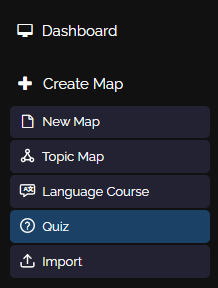
Menu Entry: Create Quiz
-
Click "Create Map" in the sidebar on the left, then select "Quiz Map ᴬᴵ".
2
Dialog: Generate Quiz with AI
-
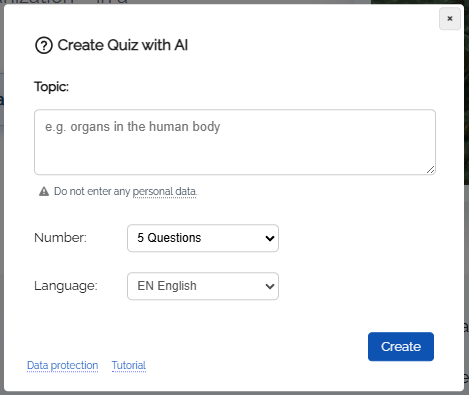
The dialog "Create Quiz with AI" opens.
-
Here you can specify the exact topic to be covered in the quiz.
-
Then click the "Create Quiz" button.
-
Also enter the number of questions (maximum 30).
3
Finished Quiz Creation
-
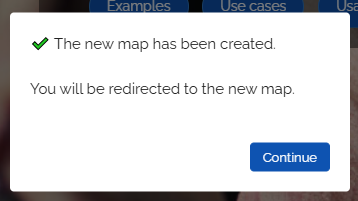
Automatically creating the pinboard takes about 30 seconds depending on the topic.
-
You will receive a success message after completion:
4
Post-Editing
-
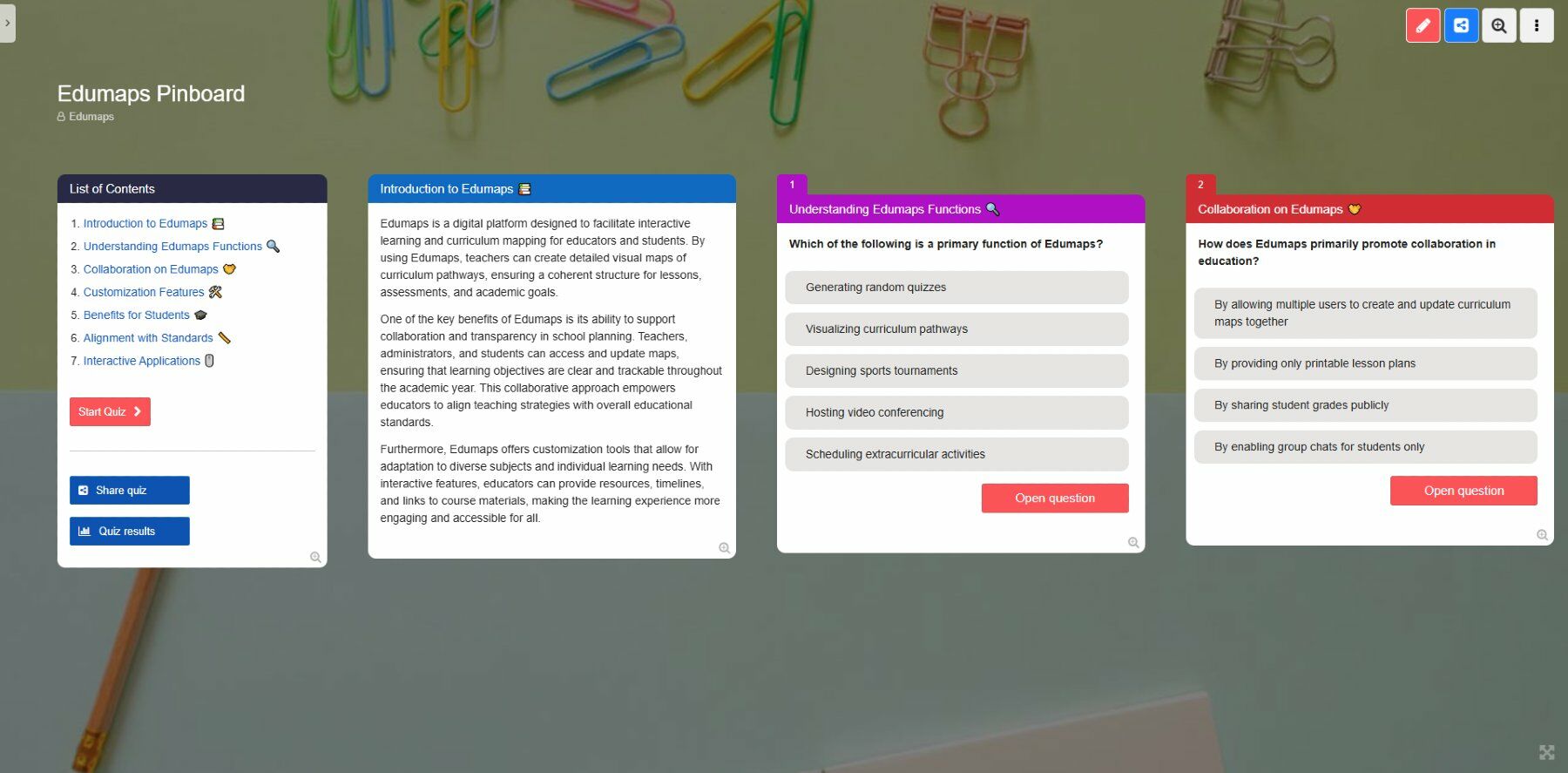
You now have the option to edit the created pinboard afterwards as desired.
-
- You can directly edit the contents of the boxes yourself.
-
Correct answers in boxes are marked with a hash symbol # at the beginning.
-
- You can add speech synthesis to texts.
- You can click "Media Search" in the box menu to add images or videos related to the topic.
- You can generate new boxes with AI by clicking the three dots next to the "New Box" button and choosing "New Box with AI" from the dropdown.
- You can rewrite box content (for example, adjust the content to another level) by opening the box menu on the box and selecting “Change Content ᴬᴵ” from the dropdown.