

5.3 Sales Module
Edumaps Tutorial Edumaps
1
Activate Sales Module
-
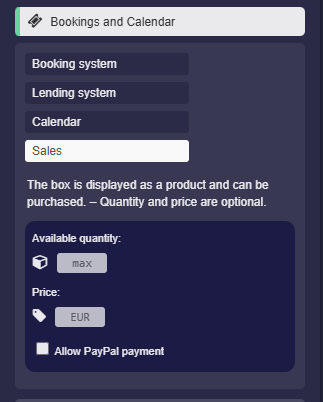
In the box settings, click on “Bookings and Calendar”. There you can activate the “Sales” option:
-
You can then optionally set the available quantity and a price. However, purchasing is also possible without this information.
-
Click on “Save Box”. – Congratulations, your product is now available for purchase.
-
Notes:
-
- This option cannot be activated by students or anonymous users.
-
⚙ activate
2
Booking Process
-
Once you have finished your map and activated the sales module for one or more boxes, you can share your map via link with potential buyers.
-
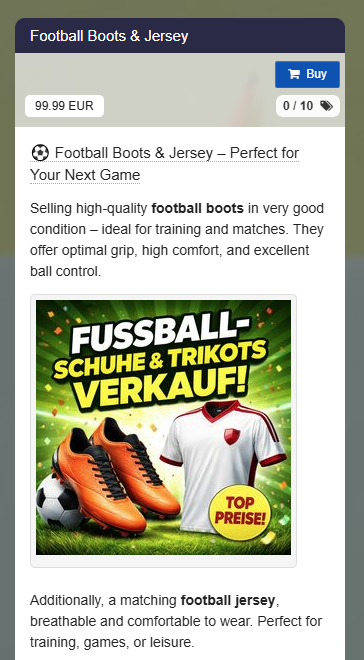
Users who visit your map will now see a purchase button directly in the box:
-
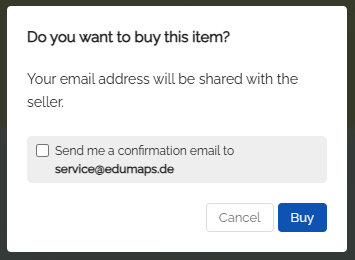
If the user clicks the blue booking button, they will see the following message:
-
The user can request a confirmation by email.
-
If the user confirms by clicking “Buy”, they are successfully registered as a buyer.
-
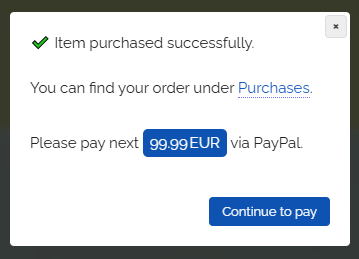
If a price has been set, the user can now click "Proceed to payment" and pay via PayPal.
-
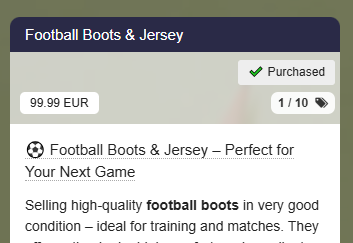
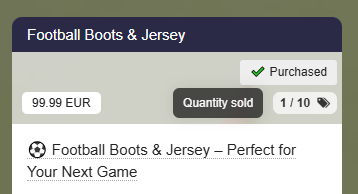
A “Purchased” label appears on the box.
-
-
⚙ process
3
Who can purchase?
-
Both registered Edumaps users and anonymous visitors can make purchases.
-
If a user is logged in, they can directly click the purchase button.
-
If an anonymous visitor clicks the purchase button, two options appear:
-
- log in with an account
- book directly with email
-
If the user selects "book directly with email", they can complete the purchase by providing their name and email address.
-
A basic account will be created for the user. This is necessary so that functions such as canceling the order can work.
-
⚙ whocanbuy
4
View Buyer List
-
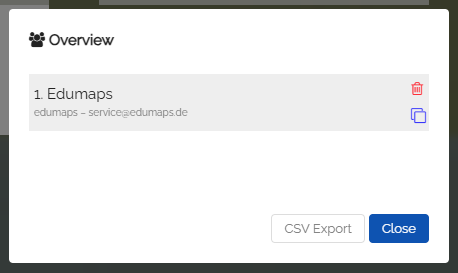
As a seller (map owner), you can view all buyers of a box by switching to edit mode and clicking the counter button:
-
All other editors (as long as they are not anonymous) can also access this list in edit mode.
-
⚙ buyerlist
5
Remove Buyer
-
You can remove buyers at any time by first opening the list of all buyers and then clicking the remove icon next to the respective user:
-
⚙ remove
6
Buyer Cancels Purchase
-
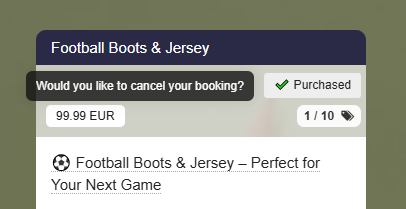
Any buyer can cancel their order by clicking the "Purchased" button:
-
⚙ cancel
7
Export Buyer List
-
You can export the entire buyers list by clicking the "CSV Export" button.
-
You can then open the downloaded file in your spreadsheet program.
-
⚙ export
8
Buyer List – Export All Buyers of a Map
-
You can export the buyers of all products on a map as a single CSV file.
-
- Switch to edit mode.
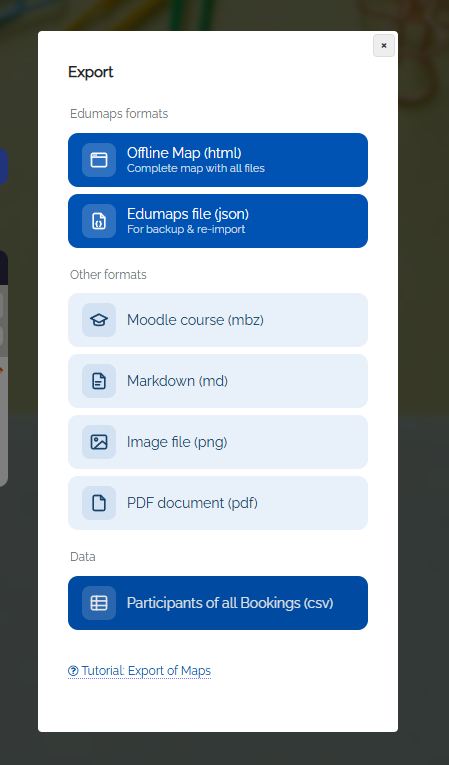
- Click on the three dots in the map menu and select "Export map".
- In the dialog that opens, choose "Participants of all bookings (csv)".
-
You can now save the generated CSV file on your computer and continue working with it.
-
The export includes the product name, email address, full name, and username of each buyer.
-
⚙ exportall
9
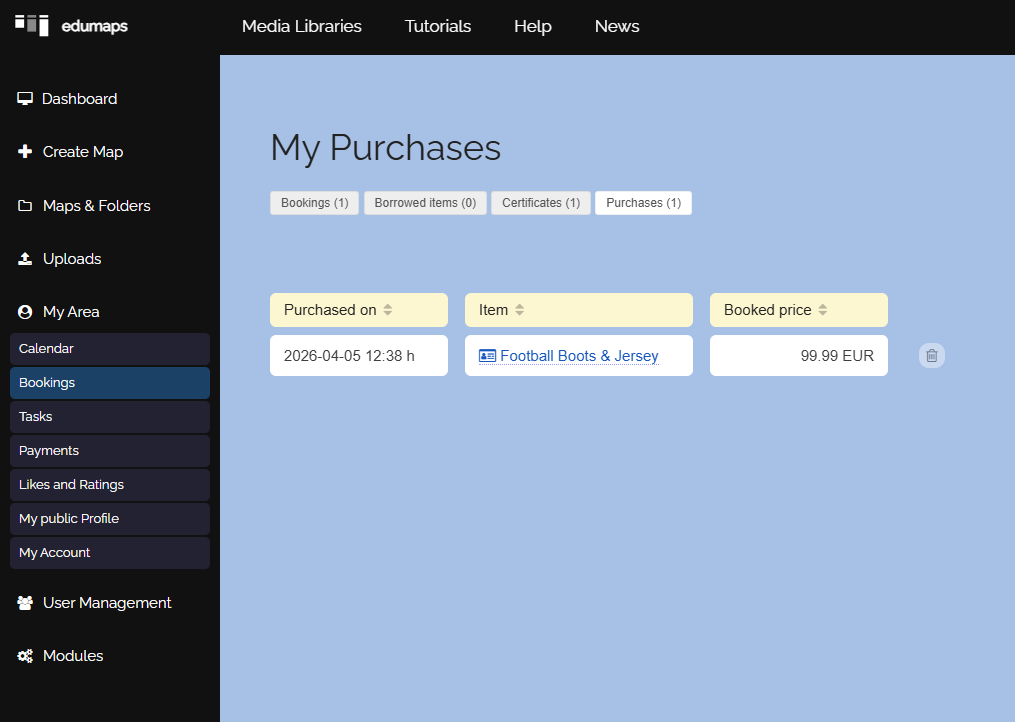
Overview "My Purchases"
- On the page “My Purchases”, each user can see which purchases they have already made.
-
There you can find your ordered products and cancel them.
-
⚙ overview
10
Pay with PayPal
-
⚠️ The PayPal payment feature is only available on the main server (www.edumaps.de) and requires a Premium account.
-
You can set a price for your product and receive the money directly from your buyers via PayPal.
-
To do this, go to the box settings and enter the “Price” in euros.
-
The price label will then appear on the box.
-
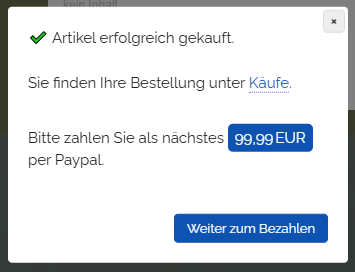
The buyer can first book the product and then proceed to payment.
-
The booking dialog appears as follows:
-
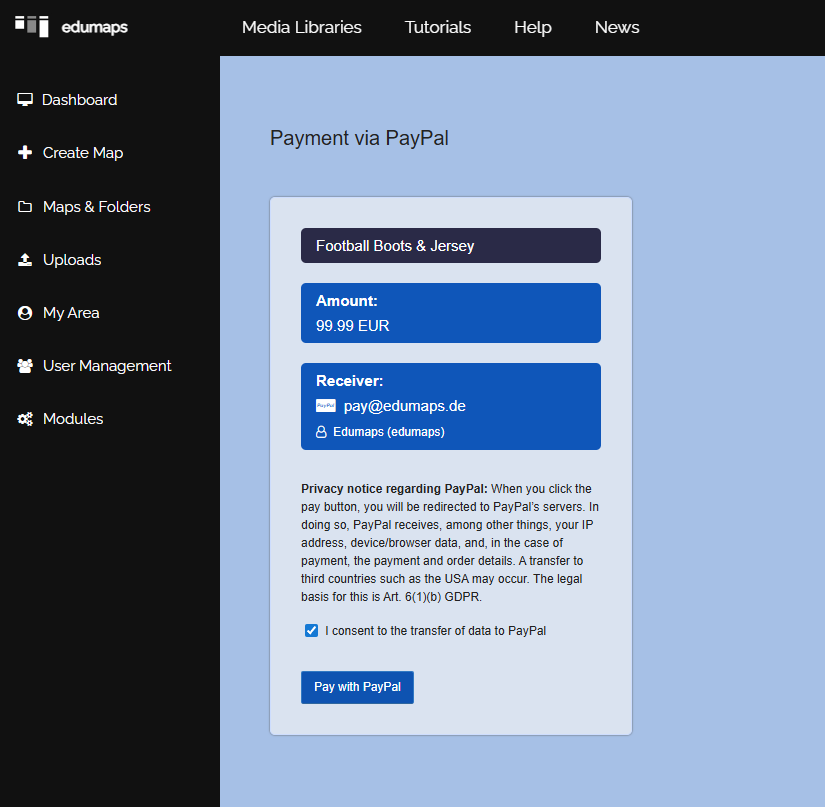
The user will then be redirected to PayPal.
- After successful payment, you will find the transaction with all details on the page “Received Payments”.
-
You can set your PayPal address on the page My Account. If no email is specified, the email address of your user account will be used.
-
⚙ payments
11
Central Sale of Products from Other Users
-
If there are multiple sellers/providers (and PayPal payments should go to different users), proceed as follows:
-
- The other users create maps with boxes, activate the sales module, and set a price for each box.
- The other users send you the link to the box.
- You embed the corresponding boxes of the other users into your own map.
- The different boxes from different users can now be booked and paid for directly on your map.
- Each payment is sent to the respective user who provides the box.
-
⚙ thirdparty