
Use cases for Maps (Pinboards)
Edumaps📑 List of Contents
-
- Planning and Documentation
- Bulletin Board - News and Information
- Collaborative Material Collection
- Take Notes
- Create Presentations
- Courses and Tutorials
- Photo Collection | Photo Album
- Photo Wall
- Exchange of photos and videos
- Brainstorming / Collection of Ideas
- Knowledge map / Learning map
- Time plans
- Timeline
- Feedback
- Support
- Collaborative Games
- Competitions
- Concept Board
- Mood Board
- Kanban Board
- Exploration Tour
- Newsletter
- Screen in the school entrance
- Flea Market / Swap Meets
- Diary
- Monthly Documentation
- Meal Plan / Menu (Restaurant)
- Create Charts
- Tree Diagram and Decision Tree
- Family Tree and Parse Tree
- Associationogram and Cladogram
- Video or Music Collection
- Organize a Meeting
- To-do List
- Teamwork
- Games in Realtime
- Bookmark Manager
- Blog
- Voting on a Topic
- Trainings and Courses
- Questions and Answers / Interviews
- Plan Parent Meetings
- Schedule Planning
- Story Telling (alone or collaborative)
- Cloud Storage
- Rentals
- Flashcard learning
- Interactive Whiteboard
- Space for Discussions
- Event Calendar
- Media and Document Archiving
- Creative Writing Tool
- Presentations and Lectures
- Construction Work and Offers
- Resume (CV) and Applications
- Example: Students introduce themselves
- Example: Favorite places in your city
- QR Code for your Child's Phone
- Documentation of Storage Locations
- Meal Selection for School Kitchen Menu Planning
- Collect class money
- Website of School (Web Presence)
- Search Operations for Missing Persons
- Travel Planning (with AI)
- Newspaper online
- Podcasts
Examples
Selected examples of pinboards
1
Planning and Documentation
-
A map can be used as a working tool.
-
- For planning or structuring the procedure.
- To document the work results.
-
Examples:
-
- Plan a class trip
- Prepare a school festival
- Plan tournaments and championships
- Plan your holidays
- List of renovation works
- Shopping list
- Wish list for birthday, wedding etc.
- Protocol for teacher conference
- Documentation of experiments
- Marketing plan
- Business plan for startup
- Treatment plan of a doctor
- Planning talks
- Diet plan
- …
-
⚙ planning
2
Bulletin Board - News and Information
-
You can use a map as a bulletin board to centrally publish news about your school or your class.
-
For example, the map may include:
-
- School news
- Office hours of teachers
- Homework
- Tests and exams
-
With the “Follow Map” option, all of your students/teachers will be notified via email when you provide new content on the map.
-
⚙ bulletin
3
Collaborative Material Collection
-
Individual work
-
You can use one map per student, in which each student can collect material on a topic.
-
Work in groups
-
A central map can also be created in which all students collect material on a topic.
-
For each path, you can specify a group of students who collect material on the selected topic.
-
Of course, a path/topic can also be edited by just one student.
-
⚙ material-collection
4
Take Notes
-
To organize your everyday life, you can use a map to take notes.
-
For example, you can create a list of things you need to do.
-
You can upload photos of important things into a box and make notes about them.
-
To make sure you do not forget anything, you can leave a voice recording or a webcam recording.
-
⚙ notes
5
Create Presentations
-
You can use a map to create a presentation on any topic.
-
Comprehensive example:
-
A presentation can be created individually or by a group.
-
⚙ presentations
6
Courses and Tutorials
-
Courses/Trainings
-
Edumaps is suitable for courses and trainings.
-
- Prepare your materials in a structured way.
- Distribute the map link to your participants.
- Use the map live during your course.
- Get feedback live during the course.
- Evaluate the course at the end.
- Make the map available as a course document.
-
You can also record your course using a screen recorder and provide the final course video in your map so that your participants can watch it again later.
-
The learning process becomes more transparent and easier for all participants. The teacher has a lot less work and all the materials are in one place.
-
-
Tutorials
-
With Edumaps you can create any type of tutorial. For example:
-
- Tutorial with screenshots in several boxes with textual descriptions
- Tutorial with screenshots in several boxes with your audio recordings via microphone
- Tutorial with screen recordings, texts and audio
- Tutorial with your own presentation videos, where the recording is possible directly on Edumaps with your webcam
- …
-
⚙ courses
7
Photo Collection | Photo Album
-
A map can be used as a photo collection, for example for a holiday album that you can share to people of your choice.
-
A path is created for each day of vacation.
-
Each box contains a brief description of where each place was visited - including a photo.
-
Boxes are arranged chronologically one below the other. Optionally enter times.
-
-
The following can be documented just as well:
-
- School festival
- Excursion
- School trip
- School rally (first school visit)
- Photo story
- Presentation of persons
- Exchange photos with other classes (from other countries)
-
-
Every teacher/student in your school can contribute to your map and add photos.
-
⚙ photo-album
8
Photo Wall
-
You can also design a map as a photo wall.
-
Example:
-
⚙ photo-wall
9
Exchange of photos and videos
-
If you want to share multiple photos and videos, you no longer have to send huge emails or use non-data protection-compliant cloud storage such as Google Drive.
-
Instead, you can create a map on Edumaps and upload all photos and videos there.
-
You then send the link to the map via email to everyone involved.
-
To make photo sharing even more secure, you can assign a password to your map. Access to this protected area is then only possible with a password.
-
⚙ exchange
10
Brainstorming / Collection of Ideas
-
You can use a map to brainstorm or share ideas and collect as many ideas as you want.
-
A box represents an idea.
-
Alternatively, you can use text fields. Each text field represents an idea. Additionally, arrows can be used to represent processes.
-
You can also collect ideas or opinions anonymously. To do this, simply share the map without the need to login.
-
Example:
-
Alternatively, you can also add freely positionable images to your map.
-
⚙ brainstorming
11
Knowledge map / Learning map
-
Various knowledge topics can be prepared in a structured way in a map.
-
The boxes (or paths) can represent individual chapters.
-
Content can be enriched by uploading photos, audio and videos.
-
-
Examples of topics:
-
⚙ learning-map
12
Time plans
-
You can use a map to show time plans.
-
For example:
-
- daily schedule
- class schedule
- Weekly schedule
- Monthly plan
- Annual plan
-
The paths and boxes can be used accordingly as units. Simply enter the time or date in the title.
-
⚙ time-plans
13
Timeline
-
If you select the "Timeline" as the map mode, you can create a timeline.
-
Various things can be shown chronologically on such a timeline.
-
For example, historical events or your own schedule or schedule at the school, etc.
-
Example:
-
Work Schedule LINK
-
⚙ timeline
15
Support
-
You can use a map as the basis of your customer support.
-
Customers can anonymously enter errors/problems and give feedback.
-
You can comment accordingly and offer help.
-
Further, a complete customer administration resp. customer care with documentation of events as well as uploads of all documents/photos/files relating to the respective customer is also possible.
-
⚙ support
16
Collaborative Games
-
A few suggestions for games:
-
Create a box with a Sudoku picture. The students solve the sudoku and upload their result as a comment to the box.
-
For each box, you ask a question that the students have to answer.
-
You let students create drawings on a topic, which are then uploaded to the box as comments.
-
Who writes the best text on a certain topic? Each text can be created in a separate box.
-
Who can read a text as the best? The student simply clicks the “Mic” button and records what they read.
-
You can also use the spoiler feature to hide answers to questions. If necessary, play with your students using the map directly during the lesson.
-
Spoiler example:
-
Zum Zeigen klickenThis is a solution.
-
⚙ games
18
Concept Board
-
A concept board (also called presentation board) is a starting point of a creative process. It's an arrangement of images, text, and colors that can help explore different styles.
-
It can describe the direction of a project, be a guide for a designer, and communicate design ideas. Inspiration for the project can be presented graphically. It can also outline features and benefits of a product.
-
The steps in creating a concept board include identifying the concept, researching the concept and associated visual presentations, gathering relevant images, text, and other materials, organizing the various materials, evaluating the result, and making any necessary adjustments.
-
⚙ conceptboard
19
Mood Board
-
A mood board is a collage of images, text and objects on a topic. It is a visual representation of what is felt about a particular idea.
-
A mood board aims to convey the atmosphere or mood of a design.
-
This presentation tool balances creative freedom and coordination. It is often used by designers and creative artists such as photographers, interior designers, and graphic designers.
-
It helps set the direction for the rest of the project.
-
Mood boards can be created in cooperation and contain videos and sound in addition to images.
-
Steps in creating mood boards:
-
1. Clarify the goal
2. Explore different topics
3. Gather text and images, set fonts and colors, and identify places for feedback -
⚙ moodboard
20
Kanban Board
-
You can set up a map as a Kanban board and map your project management.
-
To do this, create 3 paths:
-
- To Do (Requested)
- In Progress
- Done
-
In the first path you add boxes, each box containing a task to be completed.
-
If the task is in progress, move the corresponding box to the "In progress" path.
-
When the task is done, move the corresponding box to the "Done" path.
- Template Kanban Board here.
-
-
Example:
-
Multiple columns can also be created for a manufacturing company.
-
- Received order
- In production
- Completion
- Shipment
- Delivered
-
⚙ kanbanboard
21
Exploration Tour
-
For example, you can let your students explore a museum or an area of your choice.
-
Each student places a photo of an exhibit in the museum on the map.
-
For a park: what types of flowers can be found and determined.
-
For a city: Which special architectural buildings are discovered and documented on a map with photos.
-
⚙ exploration
22
Newsletter
-
You can design a map as a newsletter and then link it in your newsletter.
-
You can enrich your newsletter with videos, photos and audio (including recordings) and make it look much more interesting.
-
💖 This also helps you avoid the problem of your email being blocked as spam by email servers if it contains too many links. With this method, you only send one link to your map, which contains all the other links.
-
⚙ newsletter
23
Screen in the school entrance
24
Flea Market / Swap Meets
-
Search, offer, give away
-
You can't set up a map as a digital bulletin board for swapping items or giving things away.
-
So you can exchange or donate things within a school.
-
Or you can use a trade map as a blackboard for a small town or village.
-
Either anonymous or logged in, users can add new things.
-
⚙ fleamarket
25
Diary
-
You can also use a map as a diary.
-
In such a diary, each path can represent a day.
-
They can then fill this tag/path with boxes containing their thoughts in text form.
-
You can also leave photos and audio and video recordings in the boxes.
-
-
Incidentally, keeping a learning diary is also conceivable.
-
⚙ diary
26
Monthly Documentation
-
You can create a map that contains a path for each day and represents a month.
-
In other words, 30 days/paths can be filled with notes, photos, illustrations, audio recordings and videos.
-
This creates a long-term documentation for each month.
-
With 12 such maps you can hold on for a whole year.
-
⚙ documentation
27
Meal Plan / Menu (Restaurant)
-
In fact, a map can also be used to display a complete menu for a restaurant, including photos and videos.
-
The paths can be the categories (starters, main courses, desserts, drinks). The boxes can be filled with the individual dishes.
-
Example:
-
⚙ mealplan
28
Create Charts
-
Charts can be created using the arrows and text labels.
-
You can create a quadrant chart on your own (or in collaboration with others) or a map showing weights on two axes.
-
Examples:
-
Example: Empathy Map LINK
- Template: Quadrant Map / Chart
-
⚙ charts
29
Tree Diagram and Decision Tree
-
Tree diagrams can be created with the arrows and text fields, but also decision trees.
-
Templates are available for copying:
-
⚙ diagram
30
Family Tree and Parse Tree
-
With a map you can also create family trees.
-
Parse trees (Syntax trees) are also possible:
-
Template: Parse Tree LINK
-
⚙ familytree
31
Associationogram and Cladogram
-
An associagram is a visualized collection of words that come to mind for the creator about a central concept.
-
Cladistics is a methodology of biological systematics and taxonomy based on evolutionary biology.
-
Template: Cladogram LINK
-
⚙ association
32
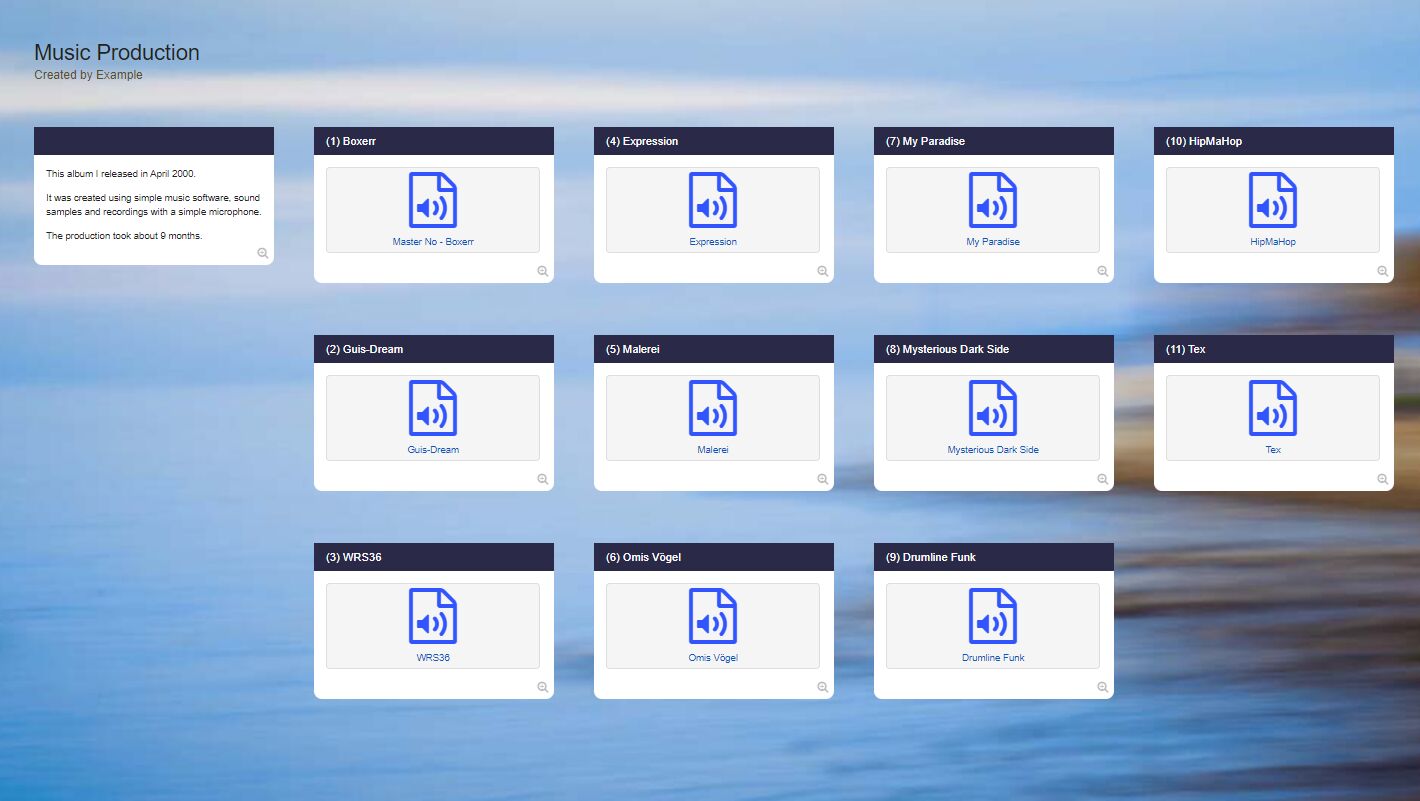
Video or Music Collection
-
You can create a complete video collection or music collection.
-
Simply arrange the videos or audio files in boxes.
-
You can present your favorite songs or even your own music recordings and distribute them to your friends.
-
Important: Do not upload copyright-protected songs!
-
⚙ video-collection
35
Teamwork
-
You can create a map for the lesson and not only have the students collect materials there, the students can also upload or create their own videos and audio recordings (project work).
-
Each student can use a box and add a microphone recording (e.g. reading aloud or reciting a poem).
-
Or the students use their mobile phones and record a video of themselves via webcam (directly inside the box).
-
⚙ teamwork
36
Games in Realtime
- You can also use templates for games (see game maps under “Templates”) and play with another person (or two groups).
-
For example Chess:
-
Or simple games like Tic-tac-toe:
-
⚙ games
38
Blog
-
You can use a map to write a complete blog (similar to a journal).
-
Each box represents a day.
-
You can use the category setting for the box to add a date to the box. The date appears as a small badge just above the box.
-
Your readers can comment on each day (or each box) and post their own photos.
-
Other users can follow your blog with the option “Follow Map” and receive an email once a day when you have new posts.
-
⚙ blog
39
Voting on a Topic
-
When you activate “Allow Ratings” in the box editor, you can choose between:
-
- Assessment (Good | Average | Poor)
- Answer (Yes | Maybe | No)
- Vote (Option A | Option B | Option C)
-
That means you can do a polling on a topic of your choice. The names of the users who have voted are also displayed in edit mode.
-
Examples:
-
- Voting for the class trip
- Voting for the class representative election
-
⚙ voting
40
Trainings and Courses
- With the booking tool, which you can activate for each box, you can organize your training courses and manage your participants.
-
You can also automatically generate certificates of participation.
-
Examples:
-
- Teacher training in the field of media
- Organize bar camps
- Further training with modules
- Book concerts (also possible)
-
⚙ trainings
41
Questions and Answers / Interviews
43
Schedule Planning
- Appointments can be organized with the booking module. Bookings can be activated in the box settings.
-
Use cases/examples:
-
- Parent talks
- Courses at school
- Courses at boot camps
- Apartment visits
-
Simply create a box for each available time and then share the map with the potential participants. They then register for the appropriate times.
-
Alternatively, you can also arrange an appointment using a tool like “Doodle”. To do this, create a separate box for each possible date. Enable the poll tool with “Yes, Maybe, No”. Now your visitors can vote for each available date.
-
⚙ schedule
44
Story Telling (alone or collaborative)
-
You can tell a story with a pin board or timeline and, in addition to text, enrich it with pictures and audio recordings.
-
For example: “Benny ran to the train station. The train was just pulling in there.” (followed by a shot of the train or a picture of a train).
-
If you have creative students, you can use boxes to tell the story in a collaborative way.
This means that each student can develop the story one after the other. -
⚙ storytelling
45
Cloud Storage
-
In fact, you can also use Edumaps to save any files, videos, photos, images, music, etc. Simply load as many files as you want into the boxes.
-
The available storage can be used to provide or exchange files.
-
However, it is important to ensure that no copyrighted content is uploaded.
- You find all your files in the Upload Manager.
-
⚙ cloud
46
Rentals
-
You can organize your entire equipment rental with pinboards. Use the reservation calendar to book times.
-
You can create a pinboard that contains all necessary information about a rental property such as an apartment, house, or room.
-
For example, in the case of a rental apartment:
-
- Entry door codes
- Wifi password
- Overview of operating costs
- Instructions for operating costs including all links to utilities
- Rent payment options
- Photos indicating where utility meters are located
- Photos of important locations within the building
-
For tourists:
-
- Points of interest
- Information about the surrounding area
-
You can place a QR code in the apartment where all this information is readily available.
-
⚙ rentals
47
Flashcard learning / Vocabulary training
- Using the timed spoiler feature, you can create spoilers that reveal themselves upon clicking and hide again after about 10 seconds.
-
This way, an entire map can be used for vocabulary training or for memorizing information.
-
⚙ flashcards
50
Event Calendar
-
You can use a map to create an event calendar.
-
You can enrich this calendar with information, videos, and photos.
-
Additionally, you can use the booking system for each box to make events bookable.
-
After the event, you can automatically issue certificates of attendance for all participants.
-
⚙ event-calendar
51
Media and Document Archiving
-
Our system allows you to efficiently organize and store your media and documents. You can create maps on which you can store your media and documents.
-
This enables structured filing and quick access to important content.
-
For example, you can create your own media archive to systematically organize all your digital media such as photos, videos, and audio files. In parallel, you can establish a separate document archive that includes all relevant text documents, PDFs, and other file formats.
-
⚙ archiving
53
Presentations and Lectures
55
Resume (CV) and Applications
-
A map is an excellent way to present your resume (CV) in a visually appealing manner. In other words, not just a list of all periods and activities, but you can enrich the information with photos and videos.
-
Instead of applying by sending an email with a resume PDF, you can send the link to the map instead.
-
⚙ resume
56
Example: Students introduce themselves
58
QR Code for your Child's Phone
-
You can create a map where you provide your contact details. Then, click on the blue “Share Map” button and select “Link to Map”.
-
In the sharing dialog, you can download the QR code.
-
Print the QR code and stick it to the back of your child's smartphone or place it inside the phone's case.
-
If your child loses the phone, the finder can contact you through this method.
-
Note: This has actually happened in a similar way, and the boy got his phone back.
-
⚙ qrcodekid
59
Documentation of Storage Locations
60
Meal Selection for School Kitchen Menu Planning
-
You can use the booking module to coordinate meal choices at school for each week or month.
-
- Create a path for each day.
- Place a box in the path for each available meal option. Activate the booking option in the box settings.
- For example, three boxes in a path with "Lasagna", "Salad", "Waffles".
- Students can now order the meal for each day by clicking the book button.
-
You can optionally add images and descriptions to the meal boxes.
- You can also enter prices. See the map "Example: Restaurant Menu" for more information.
-
This helps you optimize your school kitchen planning with Edumaps.
-
⚙ mealselection
61
Collect class money
-
If you need to collect money from each student, for example, for a trip or a project, you can use a map with boxes for this purpose.
-
Simply create checkboxes via the dropdown in the editor and enter the names of the students.
-
Example:
[ ] Sara Schneider
[ ] Mark Müller
[ ] Ben Borke-
In the editor, you can then click on the entry and a checkmark will automatically be set. This way, you can quickly mark and manage the students who have paid.
-
⚙ collect
62
Website of School (Web Presence)
-
You can also use a map to present your school.
-
Use different paths for different categories, upload videos and photos to make the website creative and appealing.
-
You can also upload freely movable images, set text fields, activate likes on the boxes. You can also activate the comment function for selected boxes. Or use a poll in a box, which can also take place anonymously.
-
Additionally, you can activate the calendar module and enter important dates.
-
Edumaps can be used not only by schools for creating a website but also by sports clubs, volunteer fire departments, kindergartens, children's homes, animal shelters, etc.
-
⚙ website
63
Search Operations for Missing Persons
-
Search operations for missing persons are large-scale measures in which various aid forces and resources are deployed.
-
In cases of missing persons reports, public appeals for support are often made in order to accelerate the search.
-
It is possible, in such cases of missing persons, to centrally collect information from the public in a public map.
-
Contributions can also be added anonymously.
-
⚙ searchoperation
66
Podcasts
-
If you regularly publish podcasts, you can create a pinboard that your students can follow.
-
Then, if you post a new entry (i.e. create a new box on the map), your students/followers will receive an email notification the next day.
-
This way, you can organize the publishing of your posts easily and clearly.
-
⚙ podcasts