
8.7 Setup Single Sign-On with IServ
Edumaps Tutorial EdumapsIntroduction
-
✔️ iServ is a school management software that also offers a single sign-on solution, which means that users can log in to multiple external services with a single login.
-
✔️ Specifically: iServ users can be directed to Edumaps with just one click from iServ and be automatically logged in.
-
✔️ Here you will learn how to set up this single sign-on as an admin.
1
Creating IServ-SSO for Edumaps
-
For Edumaps:
-
As a school admin in IServ:
-
-
Step 1
Open the IServ administration panel. Then: Administration - System - Single Sign On. -
-
Step 2
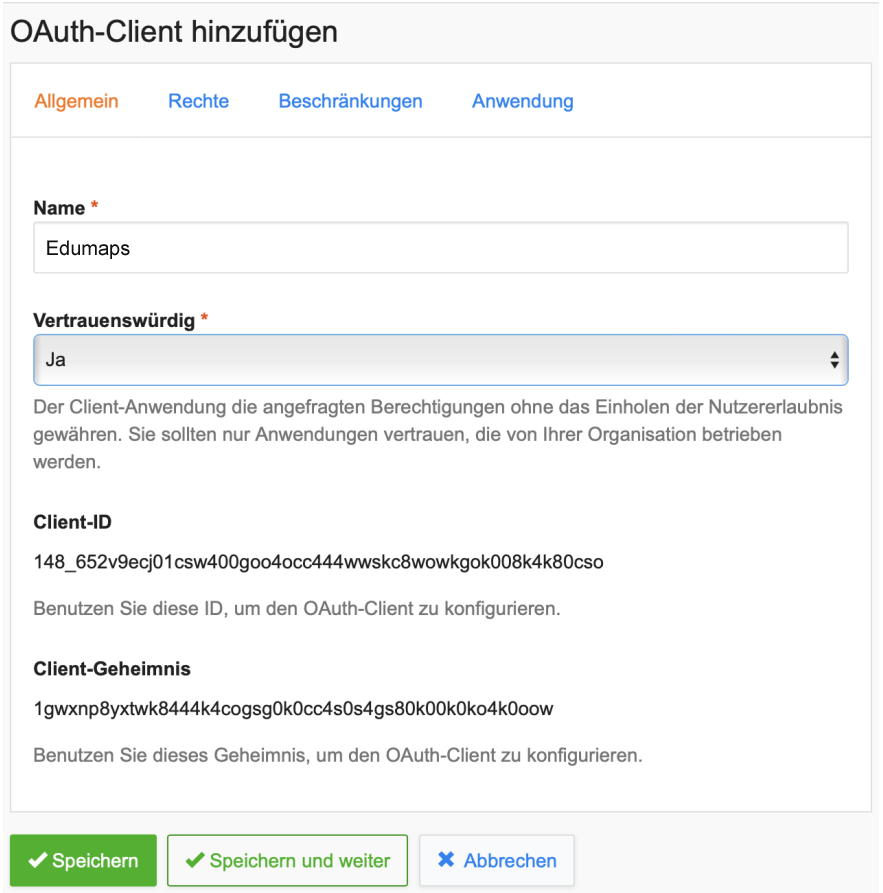
+ Add - Add OAuth-Client -
-
-
Step 3
Copy the Client ID and Client Secret. -
-
Step 4
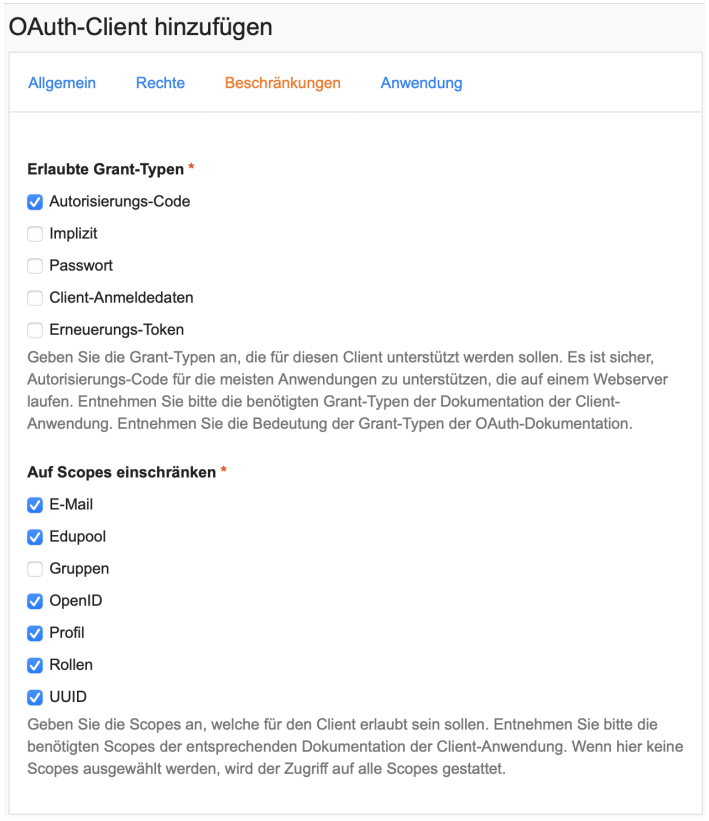
Click the "Restrictions" tab and activate the scopes there. -
-
-
Step 5
Click the "Application" tab and add "Redirect URIs" withhttps://www.edumaps.de/sso/iserv(must correspond to your server, so replacewwwwith, e.g.,heorndsornrw). Then save. -
-
Step 6
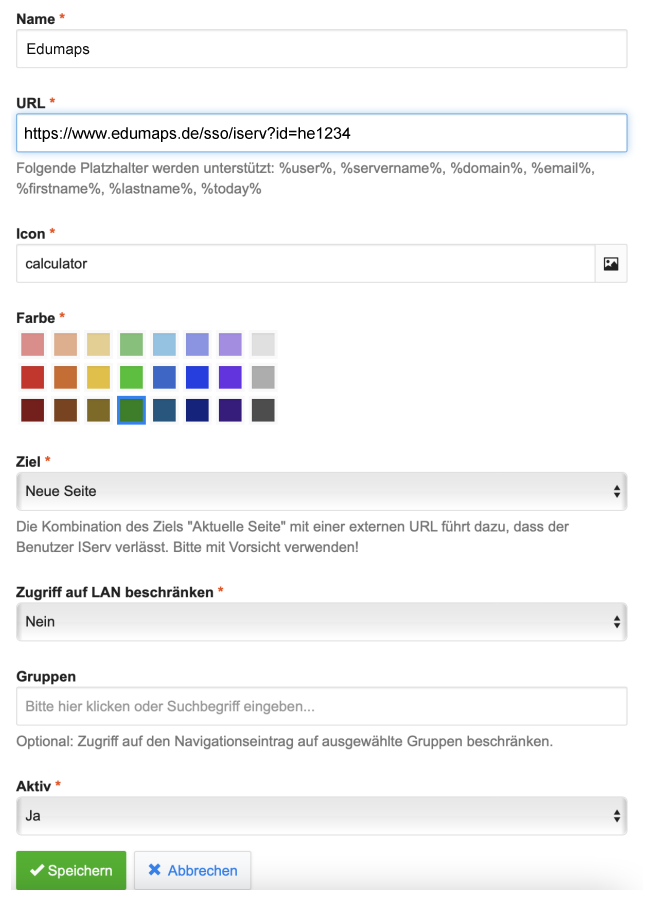
Create a WebModule - Administration - System - Navigation - click + Add - and fill it out as seen in the screenshot - important! Replace he1234 with the username of your Edumaps admin account. Then save! -
-
Make sure to enter the correct Edumaps server here. Instead of "www", use "he", "nds", "nrw", etc.
-
-
Step 7
Switch to Edumaps. Log in with your admin account. -
Go to "My Profile". There you will find a button "Create Single Sign-On". Click on it.
-
Now enter the IServ-SSO data:
-
- URL of your IServ server: e.g.,
https://yourschool-iserv.de(without "/iserv/auth" etc.) - Client ID
- Client Secret
- URL of your IServ server: e.g.,
-
Done.
2
Creating IServ-SSO for Matheretter
-
For Matheretter:
-
As a school admin on IServ:
-
-
Step 1
Open the IServ administration. Then: Management - System - Single Sign-On. -
-
Step 2
+ Add - Add OAuth Client -
-
-
Step 3
Copy Client ID and Client Secret. -
-
Step 4
Click on the "Restrictions" tab and activate Scopes there. -
-
-
Step 5
Click on the "Application" tab and add "Redirect URLs"https://www.matheretter.de/sso/iserv(must match your server, so instead ofwwwset, for example,heorndsornrw). Then save. -
-
Step 6
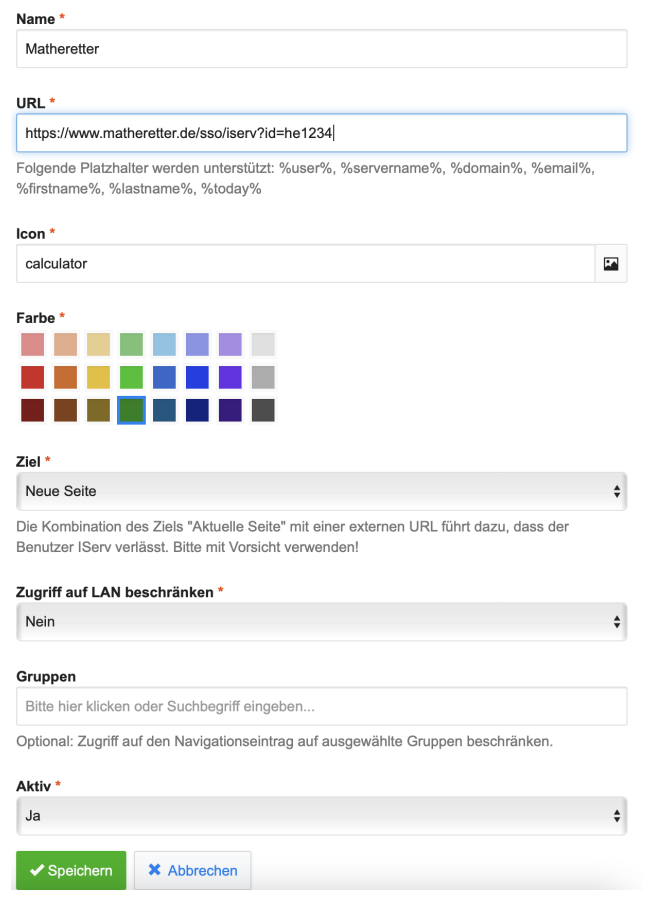
Create WebModule - Management - System - Navigation - Click + Add - and then fill out as shown in the screenshot - important! Replace he1234 with the username of your Edumaps admin account. Then save! -
-
Make sure to enter the correct Edumaps server here. So instead of "www" then "he", "nds", "nrw", etc.
-
-
Step 7
Switch to Matheretter. Log in with your admin account. -
Go to "My Profile". There you will find a button "Create Single Sign-On". Click on it.
-
Now enter the IServ SSO data:
-
- URL of your IServ server: e.g.,
https://yourschool-iserv.de(without "/iserv/auth" etc.) - Client ID
- Client Secret
- URL of your IServ server: e.g.,
-
Done.
