2.5 Using Folders: Remember, Share and Search Maps
Edumaps Tutorial EdumapsIntroduction
-
✔️ With folders you can:
-
- Collect important maps in one central place
- Compile and distribute maps
- Represent higher-level structures
- Compile maps into folders together with others (collaboration)
-
A folder contains references to maps. The map itself remains in its original storage location and can be saved in multiple folders at the same time.
1
Create new Folder
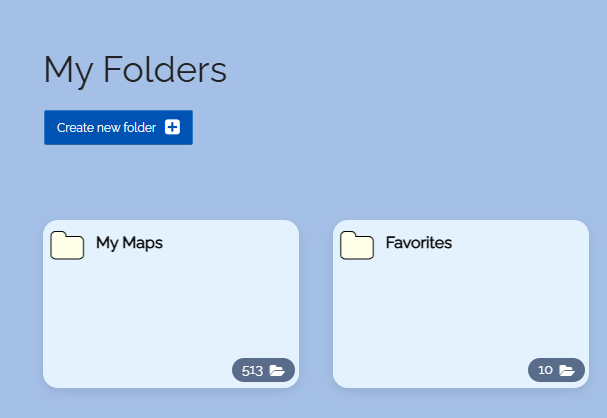
- To create a folder, visit the page “My Folders” and click the button “Create New Folder”.
-
On the “My Folders” page, you will see several folders that every user has by default:
-
- My Maps
- Favorites
- Received Maps
- Followed Maps
- Visited Maps
- Maps of My School
- External Folders
-
When you create a new folder, it will be added to the folder list.
-
⚙ create
2
Folder Settings
-
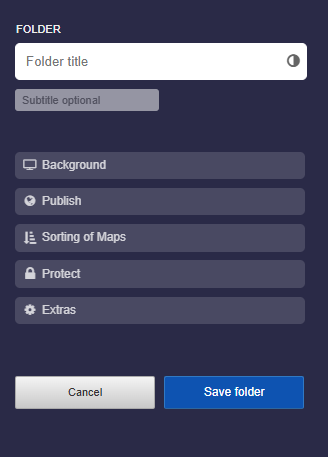
Click on the folder title above to open the folder settings.
-
Here you can configure the following settings:
-
- Background
- Publish
- Sorting of Maps
- Protect
- Extras
-
⚙ settings
3
Details about Folder Settings
-
In the folder settings, you can assign a title and subtitle to the folder.
-
1. Background
-
Choose a predefined color or a background image. You can darken the background and enable blur.
-
2. Publish
- By default, every folder is private (not listed). However, you can share your folder with “My School” or on your public profile.
-
3. Sorting of Maps
-
Here you can define the arrangement of the maps within the folder.
-
4. Protect
-
Each folder can be password-protected. In addition, you can use the option “Access only for registered users of my school” to prevent other users from accessing the folder.
-
5. Extras
-
Here you can set the language of the folder. This is helpful if you have multiple folders/maps in different languages on your public profile. A language filter dropdown will then appear.
-
⚙ details
4
Add a Map to a Folder
-
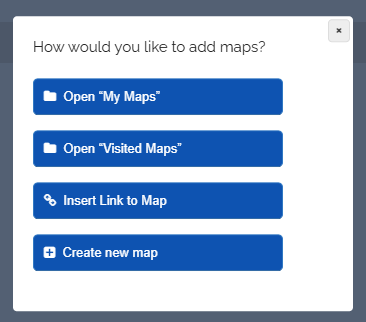
If you are in a folder, you can click the “Add map” button. The following selection will then appear:
-
- My Maps
- Visited Maps
- Select “Insert Link to Map” to paste a map link into the input field that opens.
- Create a new map directly in the folder.
-
⚙ options
5
Add Map via “My Maps” or “Visited Maps”
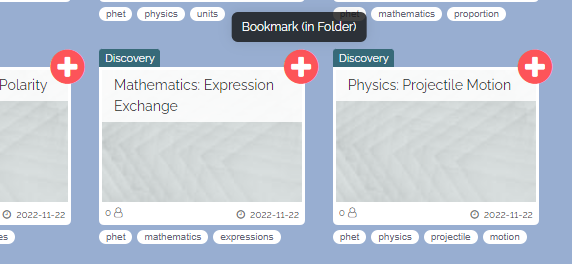
- To add a map, select “My Maps” or “Visited Maps”, and you will be redirected to the corresponding page.
-
There you can select the desired map by clicking on a red cross.
-
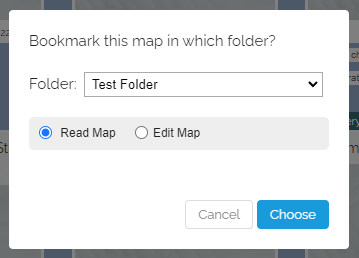
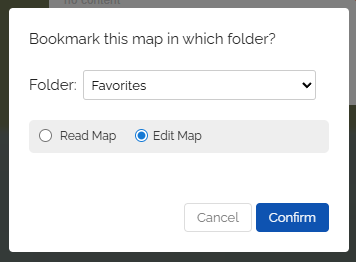
A dialog will then appear for selecting your folder and with which permissions the map should be stored there.
-
You can specify whether the map in the folder can only be viewed or also edited - depending on what rights you have to the map yourself.
-
⚙ maplist
6
Add a map using a map link
-
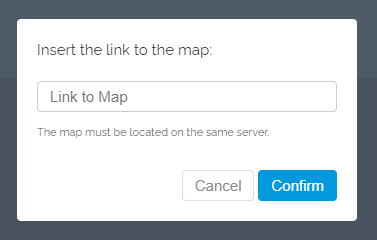
You can add any map directly to one of your folders using the Map-Link.
-
- Copy the link to the map (from the map-sharing dialog).
- Go to the page “My Folders”.
- Click on the button “Add Map”.
- Insert the link to the map.
-
⚙ maplink
7
Add active map to a folder via the map menu
-
You can save any map directly to one of your folders. Here’s how:
-
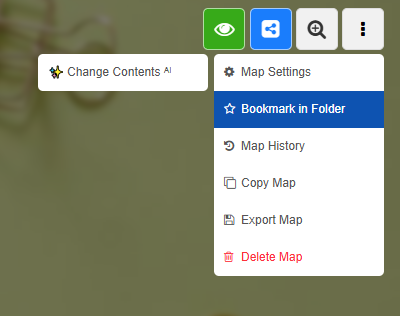
1. When you have a map open, click on the map menu at the top right.
2. In the dropdown, select the entry “Bookmark (in folder)”. -
3. Now choose the folder where you want to save this map.
-
4. The map is now in the selected folder.
-
-
💖 A map can be saved in any number of folders.
-
💖 You can also save maps from other users.
-
⚙ dropdown
8
Bookmark external Folder
-
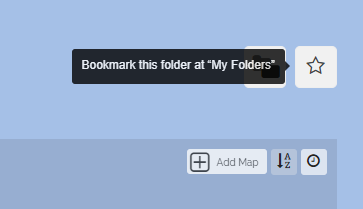
You have the option to bookmark folders from other users.
-
Open the folder and then click on the star icon.
- Afterwards, you will find the folder in “External Folders”.
-
Alternatively, you can use the “Add map via link” function.
-
⚙ external
9
Removing map from Folder
-
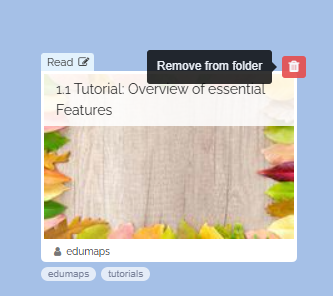
You can remove any map and any folder from the folder again.
-
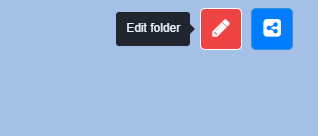
1. Click the red edit button for this purpose.
-
2. Then click on the red-white trash can icon.
-
Afterwards, the map is removed.
-
The map itself is not deleted here, only the reference to the map in your folder is removed.
-
⚙ remove
10
Saving Folder inside Folder
-
You can save not only maps, but also entire folders inside another folder. This allows you to structure larger collections clearly, for example by topics, classes, projects, or school years.
-
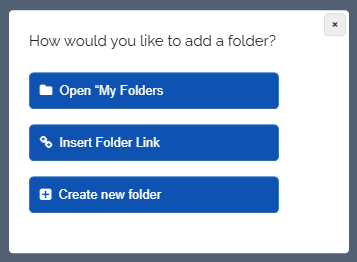
Go to your folder, click the red edit icon, and then click the “Add folder” button. The following dialog will open:
-
Select the appropriate option and add another folder to the current folder.
-
Saved folders are not moved or deleted. They will additionally appear in your folder and can still be opened in their original location.
-
⚙ folders
11
Sorting of Maps in the Folder
-
You have the option to change the sorting of maps within the folder.
-
There, you can choose between four sorting options:
-
- Newly added maps first
- Newly added maps at the end
- By map title A - Z
- By map creation date
-
This sorting is applied when the folder is opened for the first time.
-
Please note: Folders within folders are always sorted alphabetically.
-
⚙ sorting
12
Content search through all maps in folder
-
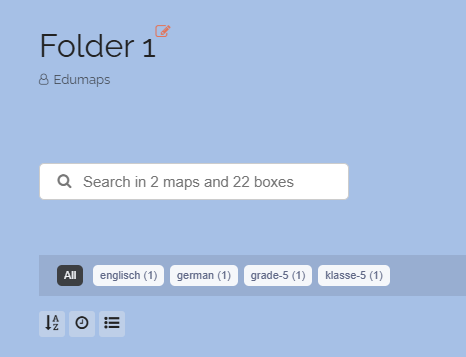
In each folder, you will find a search function that allows you to search through all the maps present there, including all the boxes located on these maps.
-
You can save multiple maps from your colleagues in a folder and then search through the contents of all these maps using the folder search function.
-
Example: You can search for a name of a student or a device name for lending purposes, and only maps will be displayed where boxes containing this search term are found. When you click on the map, the corresponding map will open, and only the box with the term will be displayed.
-
The search for boxes works in all folders as well as globally on the “My Maps” page.
-
⚙ search