5.4 Tutorial: Calendar for Boxes
EdumapsIntroduction
-
✔️ With the calendar system, a powerful tool for a variety of scenarios is at your disposal.
-
- A separate calendar can be activated for each box.
- Calendars can be subscribed to and thus added to your own calendar.
- Each user has their own calendar. See page “My Calendar” and Tutorial User Calendar.
📑 Table of Contents
-
- Applications of the Box Calendar
- Activate the Calender
- Settings for Calendar View
- Calendar View with Time slots
- Calendar View with School lessons
- Reading or Editing the Calendar
- Editing the map and read-only access for the calendar
- Overview of all Events below the Calendar
- Create Events
- Edit Events
- Delete Events
- Overview of all calendar entries
- Notification for new Event entry
- Subscribe to Calendar
- Embed in external calendars such as Apple and Google
1
Applications of the Box Calendar
-
You can assign each box its own calendar in which you can enter appointments.
-
Areas of application include:
-
- School and lesson planning (timetables, exam dates)
- Birthday calendar
- Training plans and game dates (for clubs)
- Event planning for workshops, celebrations, etc.
- Project management (milestones)
- Community projects (for neighbors, communities)
- Healthcare (appointment scheduling for doctors' offices, visiting hours)
- Opening hours and bookings (museums, theaters, restaurants, etc.)
-
Tip: For the rental of items and for room rentals, you can use the rental system.
-
⚙ applications
2
Activate the Calender
-
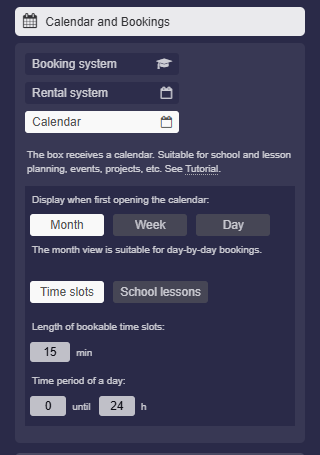
To enable the calendar for a box, open the box settings and click on “Calendar and Bookings” and then “Calendar”.
-
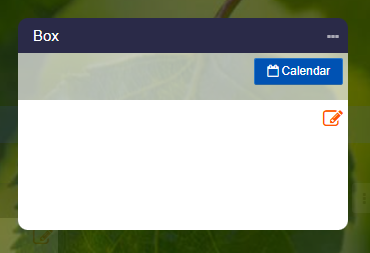
A “Calendar” button will then appear on the box.
-
⚙ activate
3
Settings for Calendar View
-
For the calendar you have the following settings.
-
The “Display when first opening the calendar” determines the calendar view for the visitor.
-
The following modes are available:
-
- Month (for booking by day)
- Week (for booking by hour)
- Day (for booking by hour)
-
Letterhead
- At the very bottom you will also find the settings for your own letterhead, which will appear on the lending slip.
-
⚙ settings
4
Calendar View with Time slots
-
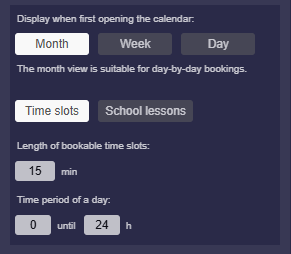
By default, the “Time slots” mode is active, which matches a familiar calendar with times:
-
Here you will find the following settings:
-
- “Length of bookable timeslots”: Specified in minutes – for example,
60means that you cannot book less than 1 hour.
- “Length of bookable timeslots”: Specified in minutes – for example,
-
- “Time period of a day”: Set start time and end time – for example,
8to16means the days are shown only from 8:00 to 16:00.
- “Time period of a day”: Set start time and end time – for example,
-
⚙ timeslots
5
Calendar View with School lessons
-
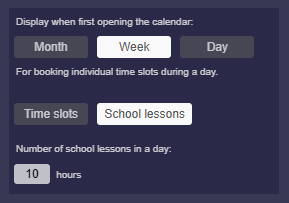
Choose the “School lessons” mode instead of "Time slots" so that each day is divided into a number of numbered school periods instead of times.
-
Enter the “Number of school lessons in a day” to specify how many lessons the day should have.
-
⚙ schoollessons
6
Reading or Editing the Calendar
-
Set the access rights for your map to "Edit with Login" so that registered visitors can also add events to the calendar.
-
In this way, shared use of different calendars is possible.
-
With read access rights, there is only read access to the calendar. Only the map owner can then make changes at any time.
-
If you share a map with “read-only rights”, the calendar will also be in read-only mode, regardless of the access rights of the map.
-
Anonymous users cannot edit the calendar. Every user must be logged in.
-
⚙ readedit
8
Overview of all Events below the Calendar
-
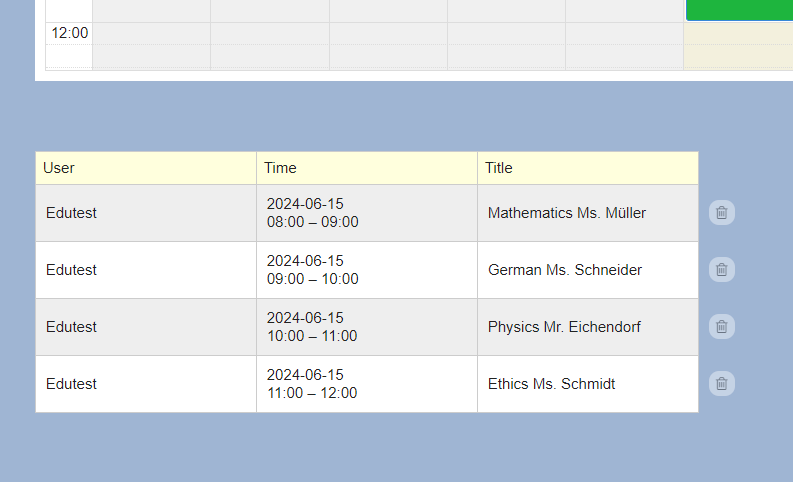
As the map owner, you will find the list of all events in each calendar below the respective calendar.
-
⚙ overview
9
Create Events
-
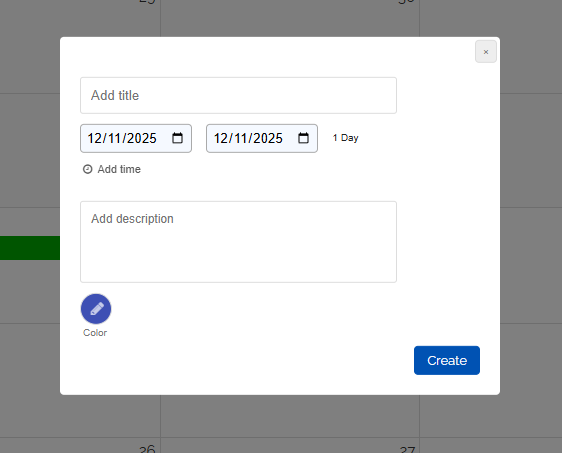
Appointments can be easily added by clicking into the calendar. Highlight the period that the appointment occupies.
-
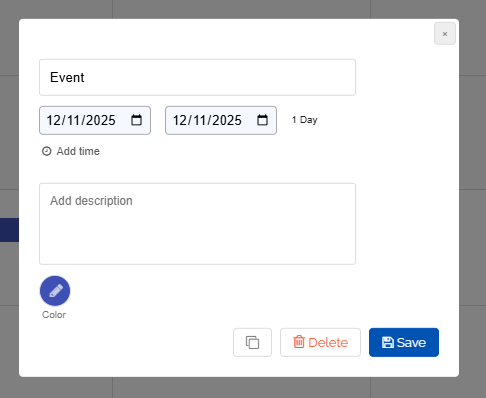
Adjust the times as desired. Add the title and optionally a description. Optionally, select a color.
-
⚙ create
10
Edit Events
-
You can change event times as follows:
-
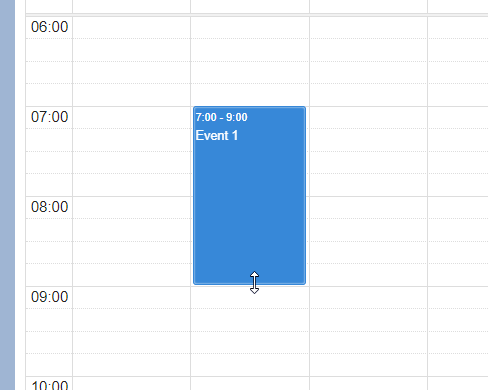
1. Rescheduling the event - Hold the mouse button down on the event and drag it to the new time slot.
-
2. Adjusting the length of the event - Move the mouse to the bottom edge of the event. Grab the bottom edge (hold down the mouse button) and change the length of the event.
-
Alternatively, you can click on the appointment. The following dialog will open for editing:
-
⚙ edit
11
Delete Event
-
You can delete events by clicking directly on the event and selecting the delete icon.
-
Alternatively, you can delete the event in the events list below the calendar by clicking on the trash can icon.
-
⚙ delete
12
Overview of all calendar entries
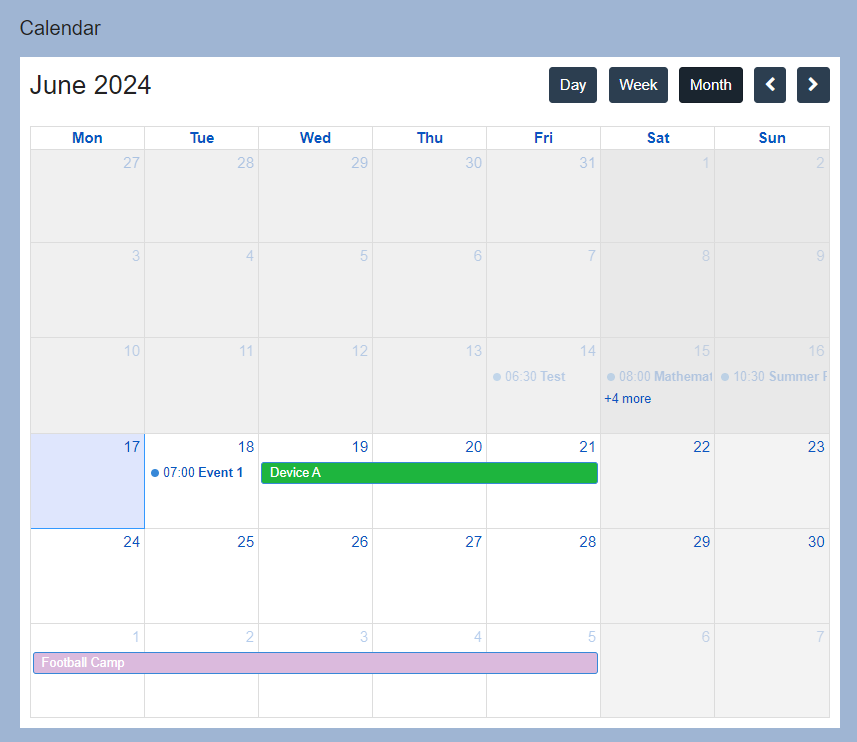
- On the “My Calendar” page, you will find your calendar that cumulatively displays all your calendar entries, including all bookings and reservations you have made.
-
⚙ entries
13
Notification for new Event entry
-
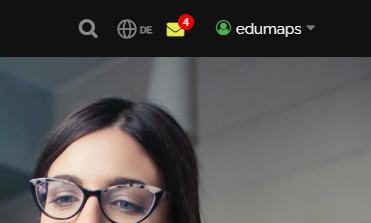
When a third party adds an event to your calendar, you will always receive a notification. This notification appears in the top right corner of the website.
- By clicking on the notification icon, you can open the page listing all notifications. There, newly added events are listed.
-
Please note that refreshing the page will no longer display the new events.
-
⚙ notification
14
Subscribe to Calendar
-
Each calendar can be subscribed to by your users. This way, all calendar entries will appear directly in each user's calendar.
-
For more information, please see the tutorial:
-
⚙ subscribe
15
Embed in external calendars such as Apple and Google
-
You can embed any box calendar into external calendars such as Google and Apple calendars.
-
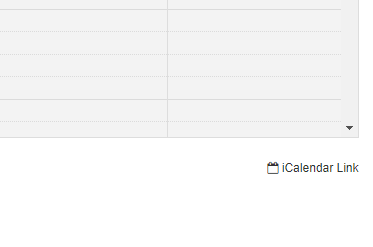
As the owner of the map, you will find an “iCalendar Link” below the calendar.
-
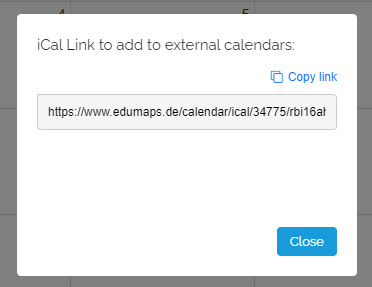
Click on it, and the iCalendar link will be displayed.
-
Copy the link and integrate it into your Apple or Google calendar.
-
-
If you would like to have your calendar as a widget on your smartphone's home screen, you can use this tutorial:
-
⚙ external