5.8 Calendar as a Widget on the Phone (with Synchronization)
Edumaps Tutorial EdumapsIntroduction
-
✔️ At Edumaps, three types of calendars are available:
-
- Personal Calendar - each user has their own calendar
- Box Calendar - each box has its own calendar
- Lending System with Calendar - a box receives a calendar for reservations
- Each calendar can be integrated into external applications via an iCalendar link. See the tutorial “Embedding in external calendars like Apple and Google” for more information.
-
With a calendar widget, you can bring all of the school's important dates to every mobile phone of your teachers and students.
-
⚠️ If you have already integrated your Edumaps calendar into your Apple or Google calendar, you can directly use the calendar widget there.
1
Goal: Set widget on the phone that shows all current events
-
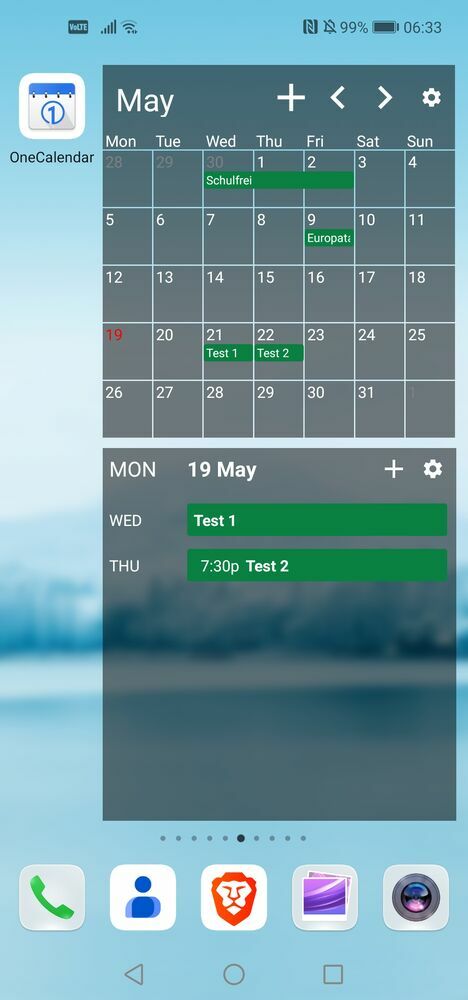
Our goal is to create a widget on the mobile background that shows us all the events of a calendar.
-
With it, you always have all important events literally in your pocket at a glance.
-
Below we will show you the necessary steps for this.
-
⚙ goal
2
iCalendar link of the calendar
-
First, open the desired calendar on your phone.
-
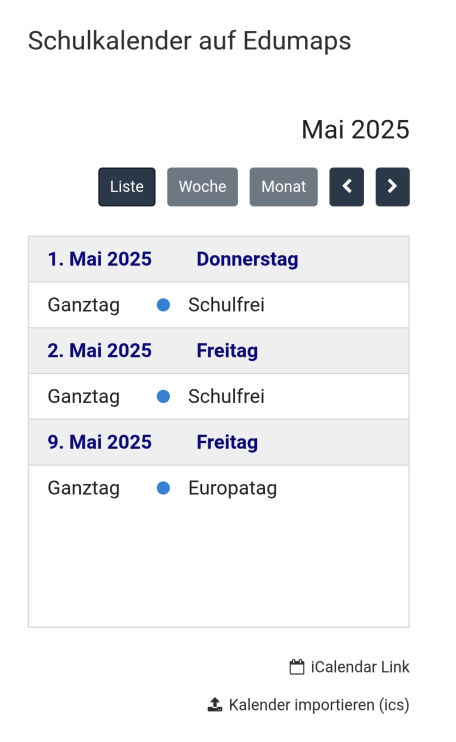
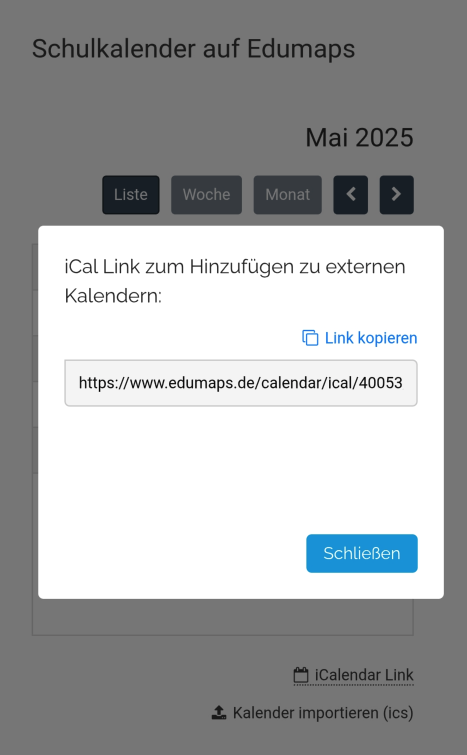
Below the calendar on the right, you will find a link "iCalendar Link". Click on it, and a dialog with this link will open:
-
Copy the link.
-
⚙ icalendar
3
Install the OneCalendar app
- Android: Open the OneCalendar app in the Play Store and install the app.
- iPhone: Open the OneCalendar app in the App Store and install the app.
-
Then open the app.
-
⚙ install
4
Integrate the Edumaps calendar into the app
-
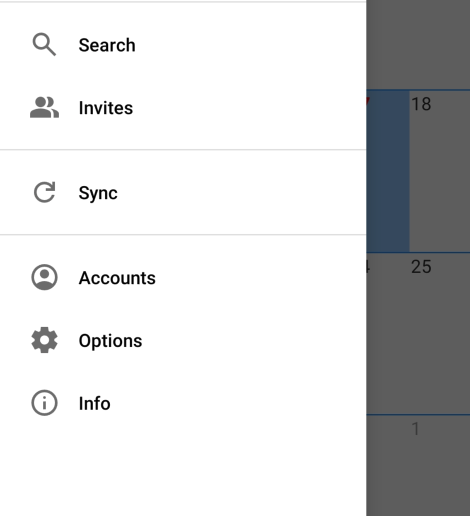
Open the app and click the icon for the menu.
-
There, select "Accounts":
-
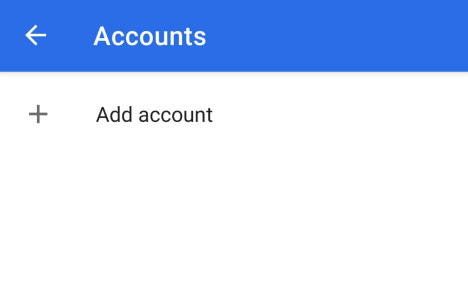
Now click on "Add account":
-
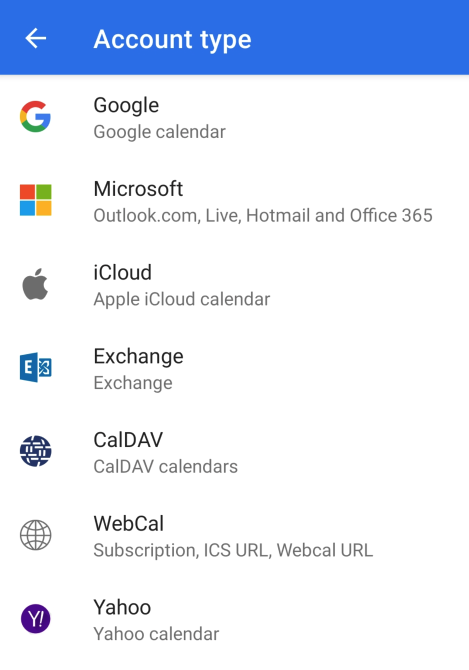
Select "WebCal" from the list:
-
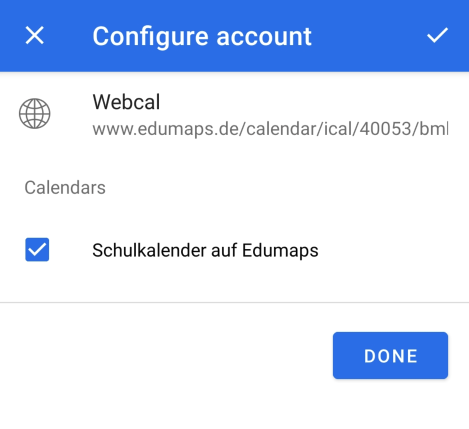
Insert the link into the input field and save.
-
The app should now display the confirmation:
-
⚙ integrate
5
Display the Edumaps calendar in the app
-
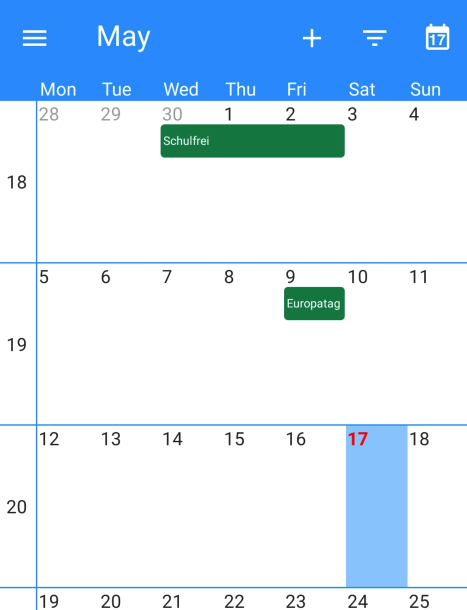
When you now open the app, all imported events from the Edumaps calendar will be displayed to you:
-
You can choose different views like day, week, month, and list in the app.
-
⚙ display
6
Place widget on home screen
-
Set a calendar widget on your home screen now to always see the current events of the calendar.
-
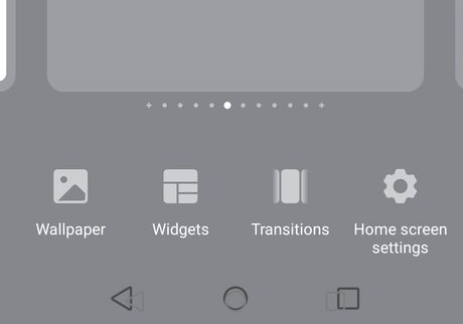
1. Press and hold the home screen with one finger until the selection “Wallpaper | Widget | Transitions | Home screen settings” appears.
-
2. Click on “Widgets”.
-
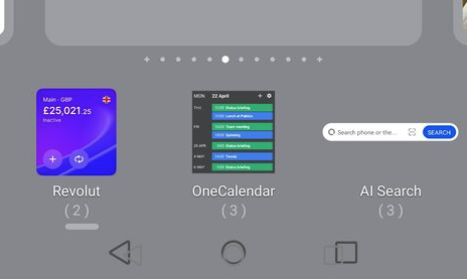
3. Find “OneCalendar” and click on it.
-
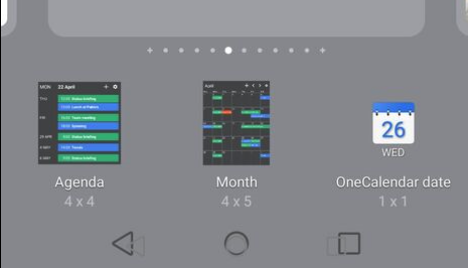
4. OneCalendar has three widgets to choose from:
-
Choose “Agenda” to get a widget with a list view of all events.
-
Choose “Month” to get a calendar widget that can be scrolled month by month.
-
Result:
-
⚙ widget
7
Activate automatic synchronization in the app
-
To ensure the app regularly displays the current events from the Edumaps calendar, you need to enable synchronization.
-
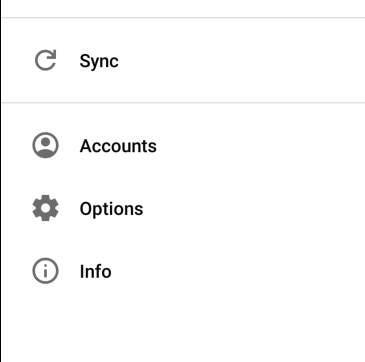
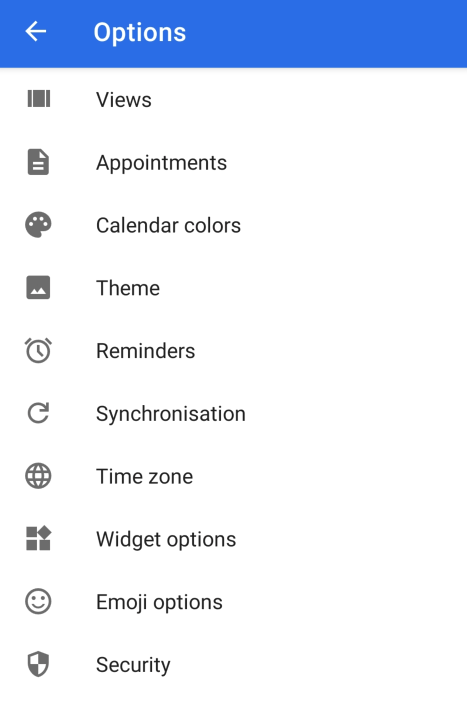
To do this, go to the menu and select "Options":
-
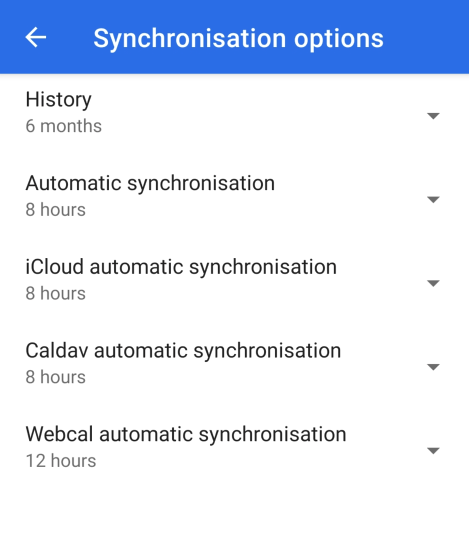
Then select "Synchronization":
-
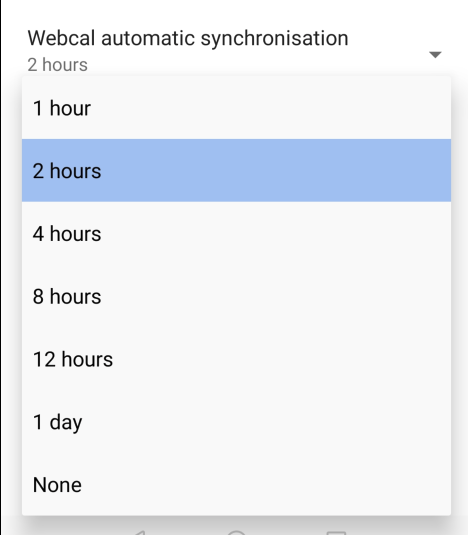
Click on "Webcal automatic synchronization":
-
Choose, for example, "2 hours" or "4 hours" as the synchronization interval:
-
Now the app synchronizes with the Edumaps calendar every 2 hours.
-
⚙ synchronization