

7.3 Import Content as new Maps
Edumaps Tutorial Edumaps1
1
Import Steps
-
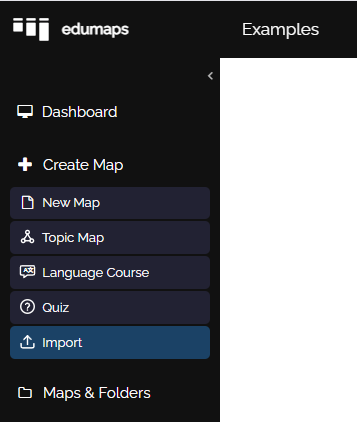
To perform an import that creates a new map, click on “New Map” in the sidebar, and then select “Import Map”.
-
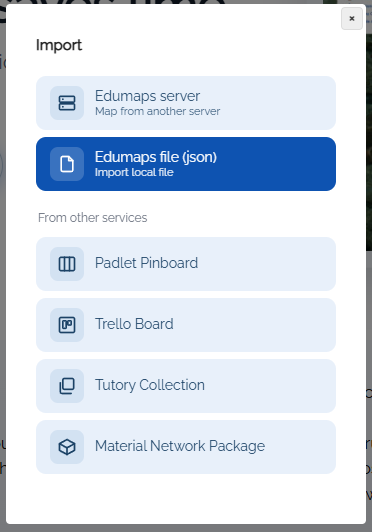
The following dialog will then open:
-
⚙ import
2
Edumaps file (json)
-
When you export a map from Edumaps, it is done in JSON format.
-
The JSON file can be imported here to create a new map.
-
Click on “Edumaps (json)”, select the file, and the map will be imported.
-
If there are uploads in the box contents (that do not originate from you), they will also be imported and appear in your upload manager.
-
⚙ json
3
Map from other Edumaps server
4
Padlet Pinboard
-
The pinboards created on Padlet can be easily and directly imported into Edumaps.
-
You can learn how to perform the import directly on the import page:
- https://www.edumaps.de/import/padlet
-
⚙ padlet
5
Taskcards
-
Boards created on Taskcards can be easily and directly imported into Edumaps.
-
You can find out how to carry out the import directly on the import page:
- https://www.edumaps.de/import/taskcards
-
⚙ taskcards
6
Trello Board
-
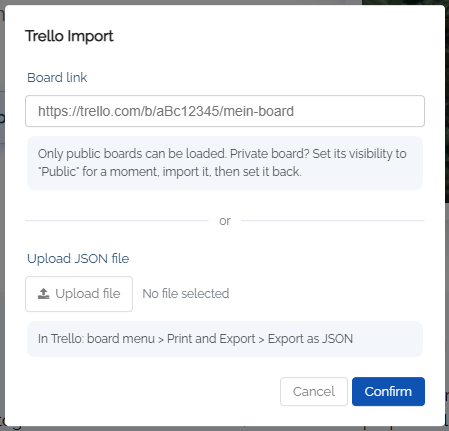
Boards created in Trello can be imported directly into Edumaps.
-
Click "Create map" in the sidebar and select "Import". In the dialog, then click "Trello board".
-
You can import any board via link, but you must make it public for the duration of the import, or import it via JSON file.
-
⚙ trello
7
Tutory Collection
-
The collections of worksheets created on Tutory can be directly imported into Edumaps.
-
See the tutorial:
-
⚙ tutory