

4.3 Create New Columns with AI
Edumaps Tutorial Edumaps
1
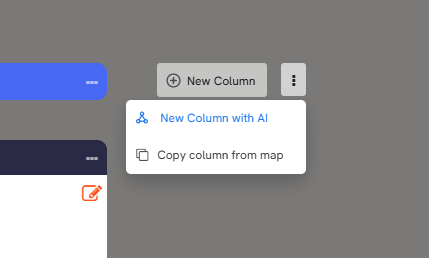
Menu Entry to Create the Column
-
Click the three dots to the right of the “New Column” button. Then select “New Column with AI” in the dropdown.
-
You can also see that you can alternatively copy a column from another map.
-
2
Dialog: Create New Column with AI
-
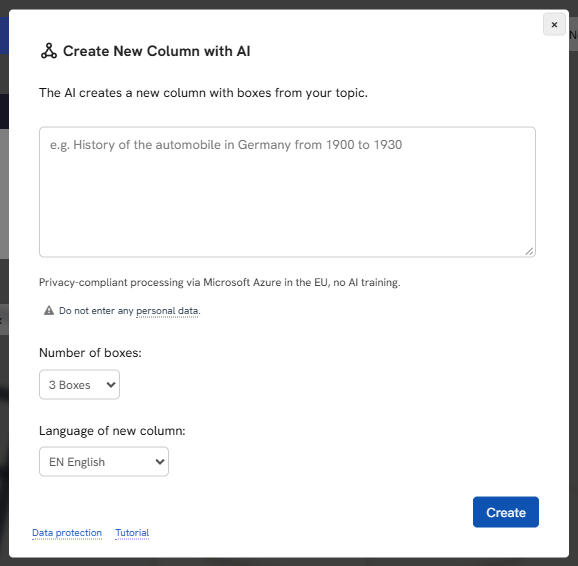
The dialog “Create New Column with AI” opens.
-
Here you can name the specific topic that the column should cover.
-
Below that, choose the number of boxes (1 to 10, the default is 3) and the language of the new column.
-
Then click the “Create” button.
-
Enter a topic of your choice, for example:
-
“History of mathematics, 5th grade”
-
⚙ dialog
3
Finished Column
-
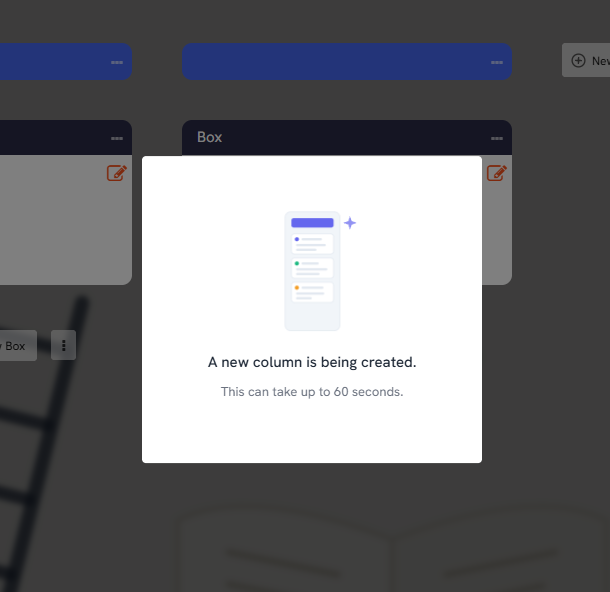
Automatically creating the column can take up to 60 seconds.
-
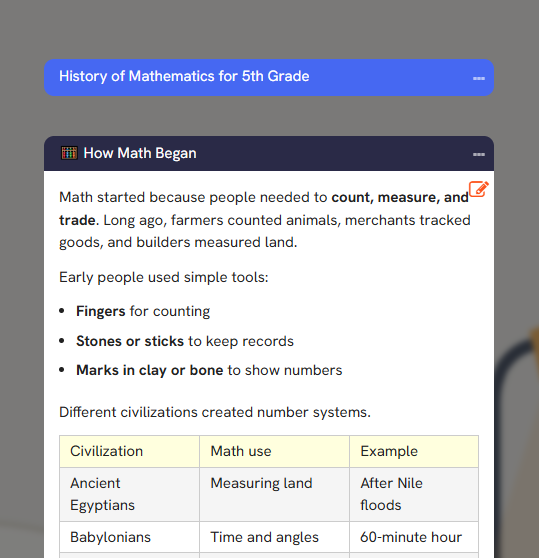
The finished column then appears at the end of your map, with a fitting column title and the chosen number of boxes:
-
⚙ finished
4
Post-Editing
-
You now have the option to edit the created column afterwards as you wish.
-
- You can change the column title and the contents of the boxes directly yourself.
- You can move or delete boxes or add more boxes, for example with “New Box with AI”.
- You can add speech synthesis to texts.
- You can click “Media Search” in the box menu and add images or videos on the topic.
- You can rewrite a box's content (for example, bring the content to a different level) by opening the box menu on the box and selecting “Change Content ᴬᴵ” in the dropdown.
-
⚙ postediting