1.4 Map Settings
Edumaps Tutorial Edumaps1
1
Map Settings Overview
-
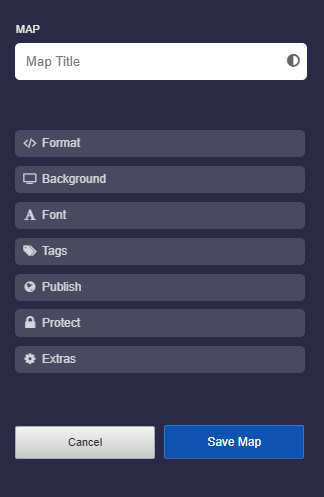
The screenshot shows the available map settings:
-
⚙ settings
2
Title of the Map
-
You can choose any title for your map. You can also insert emojis.
-
Characters from any language are possible.
-
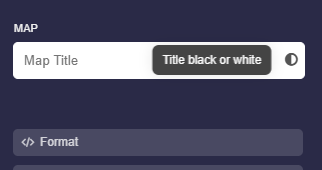
Use the text color switch to use white or black font.
-
⚙ title
3
Format text in Map title
-
The text of the title can also be formatted. The following formatting options are possible:
-
- Set bold and italic with asterisks.
**Bold** heading and here is an *italic word*.-
-
- Line breaks are possible with two backslashes.
First line of the title \\ Second line-
-
- Colors can be set with hex color codes:
My {red title}{#F00}-
-
- Font size
-
The font size can be increased or decreased as follows:
<big>My large title</big> and <small>a small text</small>-
⚙ titleformat
4
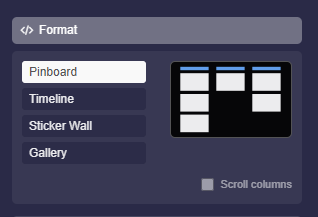
Map Format
-
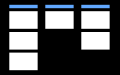
Pinboard
-
The pinboard consists of columns. Each column contains boxes. Multiple columns are positioned side by side.
-
-
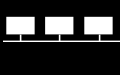
Timeline
-
The columns run horizontally. The boxes are arranged from left to right. Multiple columns are positioned one below the other.
-
-
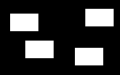
Sticker Wall
-
The boxes are freely arranged. There are no columns.
-
-
Gallery
-
In the Gallery format, all boxes are positioned horizontally one after another. It also includes a photo mode that highlights photos and videos.
-
Journal
-
In the Journal format, all boxes are positioned vertically one below another. This creates a continuous, easy-to-read layout. The format is particularly suitable for learning journals, project documentation, portfolios, reports, and chronologically structured content.
-
-
❤️ You can switch from one map format to another at any time. However, please note that Sticker Wall elements such as text fields, arrows, and images may behave differently after changing the format.
-
⚙ format

5
Background
-
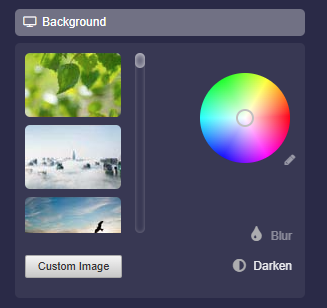
You can customize the background of your map as you like.
-
- You can choose from the available background images.
- You can upload your own background image using the "Own Image" button.
- You can select any color using the color wheel.
- If you want to enter a color code, click on the small pencil icon next to the color wheel.
- By clicking on "Darken", the background will be darkened, which often leads to better readability of the map.
- By clicking on “Blur” the background will be blurred. This effect can help to perceive the boxes better.
-
⚙ background
6
Font
-
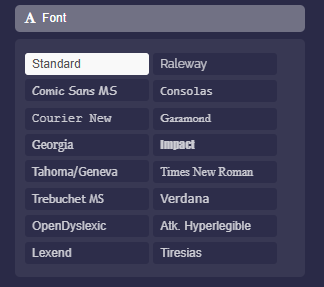
You can choose one of 16 available fonts.
-
Notes:
-
⚙ font
7
Tags
-
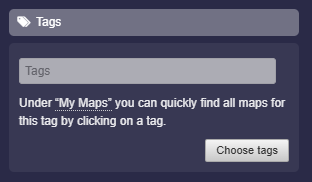
Under “Tags“ you can assign keywords to your map. These keywords help you quickly filter your maps.
- Under “My Maps”, you can then click on a tag to quickly find all maps associated with that tag.
-
The button “Choose tags” opens a dialog with pre-defined tags to choose from.
-
⚙ tags
8
Publish: “My School”
-
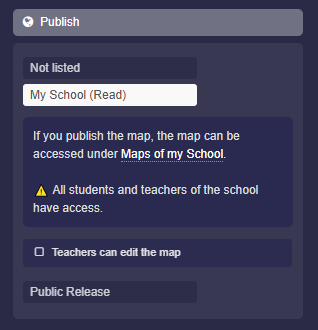
Under “Publish”, you can make the map discoverable to all students and teachers at your school.
- Click on “My School (Read)” and save the map. This way, the map will be immediately available on the page “Maps of my School”.
-
You will also find the option “Teachers can edit map”. Check the checkbox, and all teachers at your school will be able to edit this map.
-
⚙ publishschool
9
Publish: “Public Release”
-
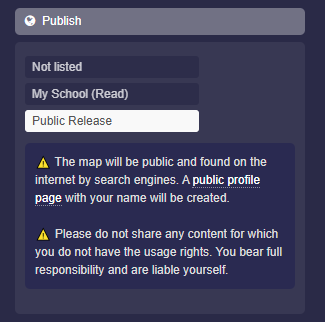
Under “Publish”, you can make the map discoverable across the entire internet.
-
Click on “Public Release” and save the map, and it will immediately be available publicly.
- In addition, you need to activate your public profile page so that your maps can be found and other users can follow you.
-
⚠️ The map is public and can be found on the internet. The map appears on your own public profile page, which is automatically created.
-
⚠️ Do not share content for which you do not have usage rights. You bear full responsibility and are liable yourself.
-
⚙ publish
10
Protect
-
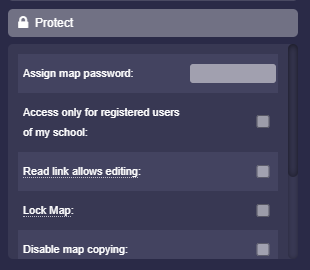
Under “Protect” you will find settings that affect access protection for the map.
-
The following options are available:
-
- Assign map password
- Access only for registered users of my school
- Read link allows editing (see here)
- Lock map
- Disable map copying
- Hide map owner
- Hide download buttons
- Regenerate map link
-
⚙ protect
11
Extras
-
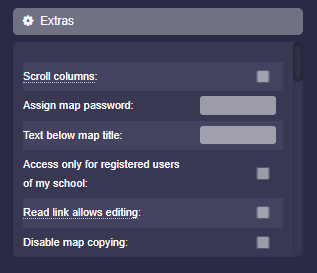
Under “Extras” you will find many additional settings as a map owner.
-
⚙ extras