

9.1 Following Maps
Edumaps Tutorial Edumaps📑 Table of Contents
1
Follow Map
-
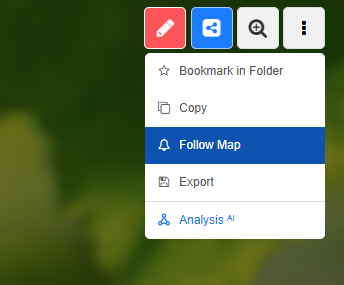
If you open the map (view) of another user, you will find the option “Follow Map” in the map menu.
-
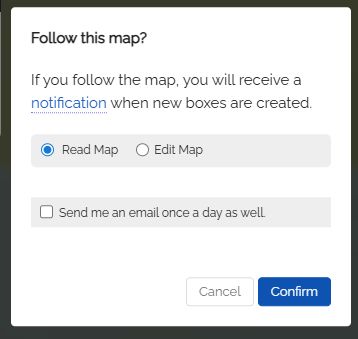
If you click on it, the following notice appears:
- You can then access your followed maps.
2
Events for Notifications
-
If you follow a map, you will receive a notification on Edumaps as soon as new boxes are created. Additionally, the server sends an email once a day if new boxes have appeared in the last 24 hours.
-
Changes to existing boxes do not count as relevant events. – This means that only the creation of new boxes triggers an email notification.
-
Tip: If you want all followers of your map to receive an email about new content, simply create a new box on your map.
3
Followed Maps
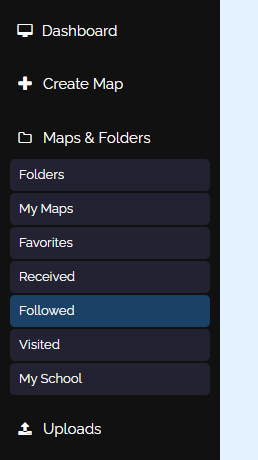
- In the main menu, you will find the entry “Followed Maps”.
-
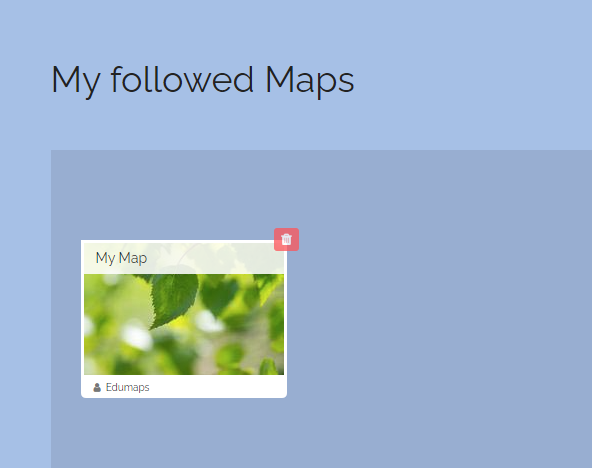
When you access the page, you will see all the maps you are currently following.
4
Unfollow Map
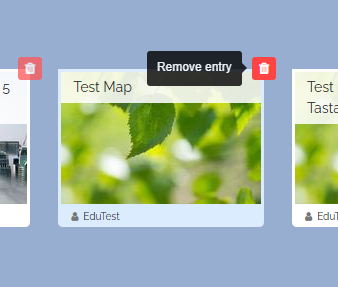
- If you wish to unfollow a map, go to the “Followed Maps” page and simply remove the map from the list.
5
FAQ
-
Q: Why do I not see the “Follow Map” option in the map menu?
-
A: If it is your own map, this option wil not appear, as you are automatically informed of changes to the map and receive a daily email.
-
If it is the map of another user, make sure you are in the map view and open the map menu there (not in edit mode).
-
Q: How do my colleagues receive a notification when something new is posted on the map?
-
To receive notifications about new boxes on a map, your colleagues can follow a map. To do this, they click on the three dots at the top right in the map view and select “Follow Map” from the dropdown menu. They will receive notifications directly on Edumaps. Additionally, our server checks once a day which users should be informed about new content and sends out an email notification.