2.7 Sharing Folders with Links & Advanced Features
Edumaps Tutorial EdumapsIntroduction
-
✔️ With folders you can:
-
- Centrally collect important maps
- Compile and distribute maps
- Depict overarching structures
- Compile maps in folders with others (collaboration)
- Here you can find the Tutorial: Using Folders: Remember, Share and Search Maps.
1
Share folder via link
-
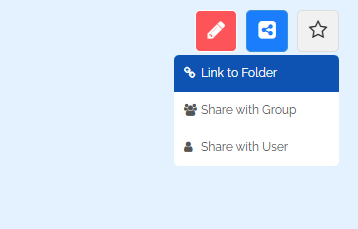
You can share your folder. To do this, click on the blue share icon:
-
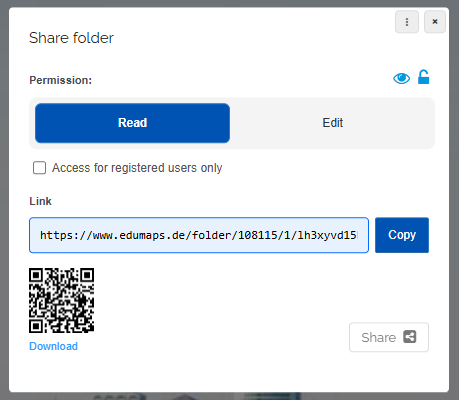
By clicking on "Link to folder", the share dialog opens.
-
Here you can choose whether to grant read rights or editing rights.
-
You can then copy and distribute the link.
-
2
Share folder with Group (Class)
-
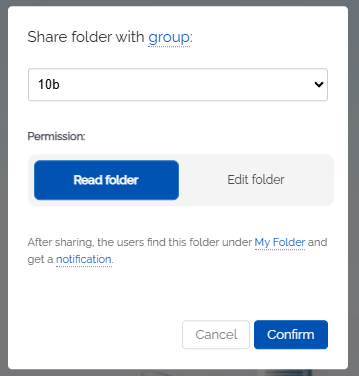
When you want to share with a class or group, this dialog opens:
-
Select your class/group. Also choose the access right (Read or Edit). Then click on "Confirm".
- After sharing, users will find this folder under My Folders (as an "External Folder") and will receive a notification.
-
⚙ class
3
Share Folder with User
-
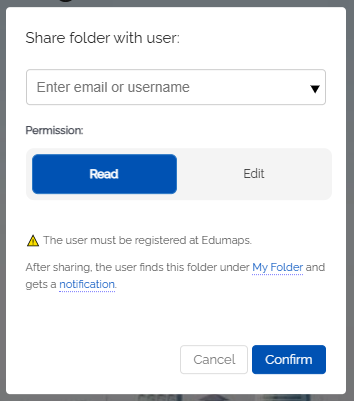
If you want to share the folder with a user, this dialog will open:
-
Enter the email or username. The user must already be registered with Edumaps. Then select the access right (Read or Edit). Click "Confirm" afterwards.
- After sharing, the user will find this folder under My Folders (as an "External Folder") and will receive a Notification.
-
⚙ user
4
Save folder in folder
-
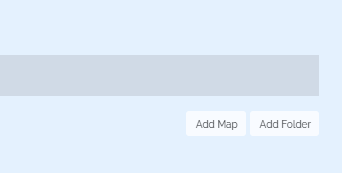
In each folder, you will find the button "Add map" next to the button "Add folder".
-
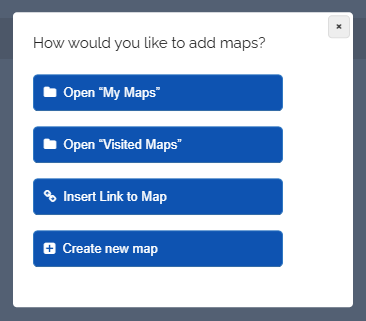
Click the "Add folder" button to open the following dialog:
-
- Open “My folders”
- Insert folder link
- Create new folder
-
⚙ folderinfolder
5
Add folder from “My Folders”
-
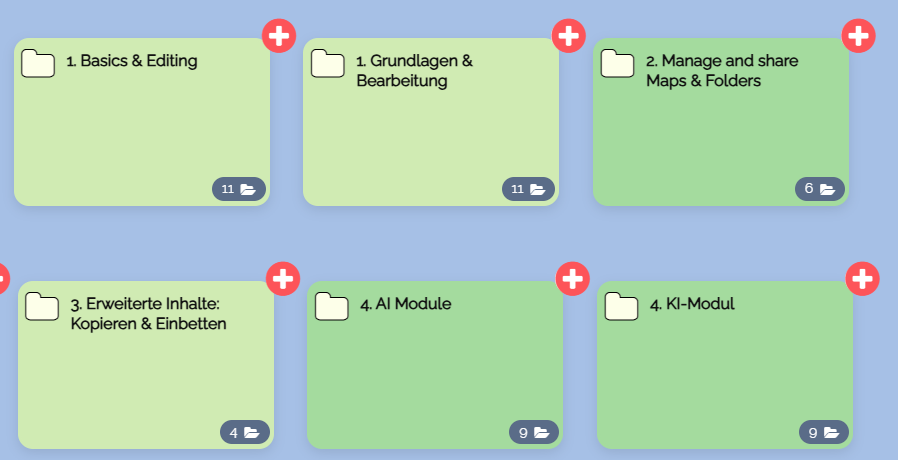
Click on "Open My Folders" and you will be redirected to the page.
-
There is a red-white cross on each folder:
-
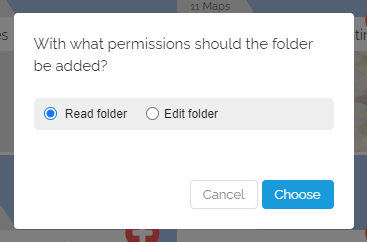
Click on a red-white cross, and the following dialog appears:
-
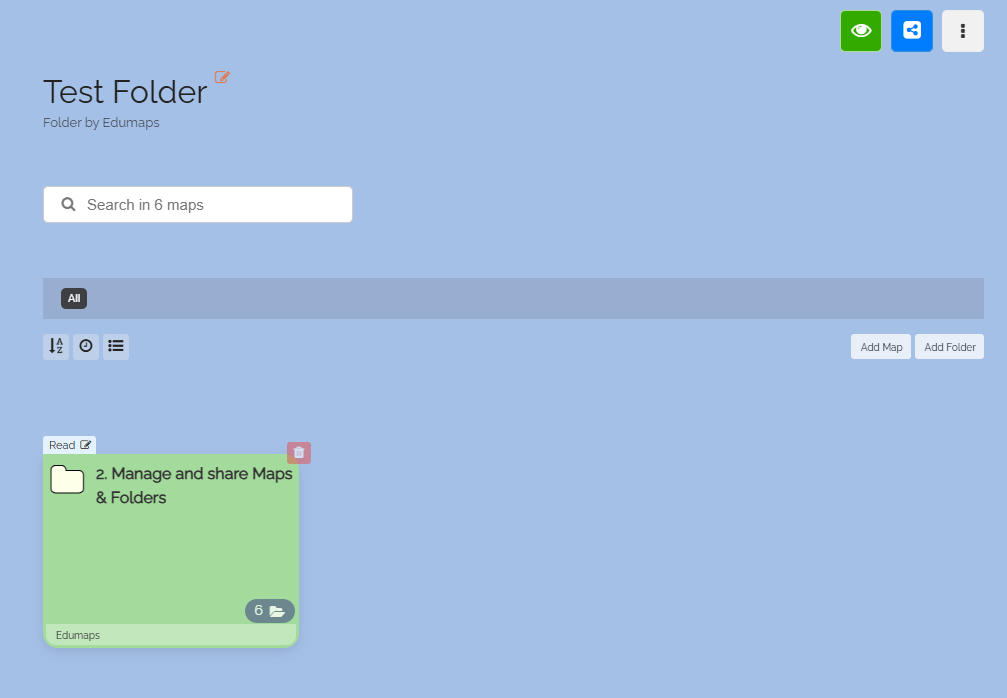
The folder now appears in the folder, also showing the access right.
-
⚙ myfolders
6
Add folder via link
-
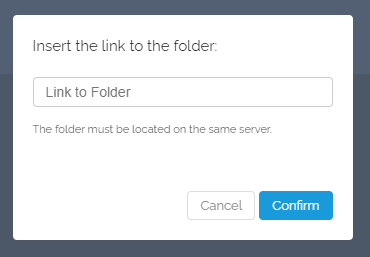
Select "Insert folder link", and the following dialog will open:
-
Enter the sharing link of the folder here and confirm.
-
The folder will then appear in your folder.
-
⚙ folderlink
7
Create New Folder in Folder
-
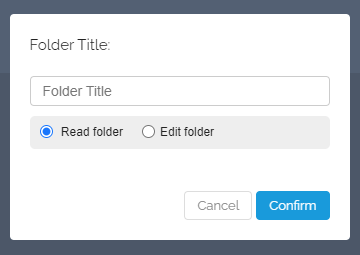
Select “Create New Folder”, and the following dialog will open:
-
Enter the name and confirm. The folder will then immediately appear in your folder. It will be assigned editing rights.
-
⚙ createfolder
8
Remove folder from folder
-
You can remove any folder from the folder again.
-
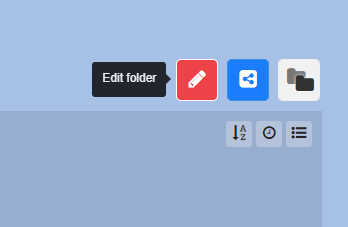
1. To do this, click on the red Edit button.
-
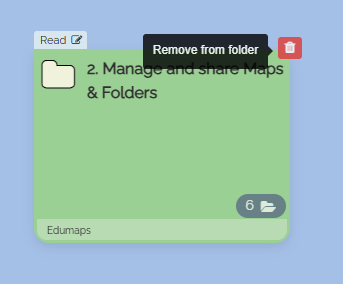
2. Then click on the red-white trash can icon.
-
The folder will then be removed.
-
The folder itself is not deleted here, only the reference to the folder in your folder is removed.
-
⚙ removefolder