6.2 Polls / Voting
Edumaps Tutorial Edumaps
1
Examples of Polls
-
Here are some examples of applications for the poll module:
-
- Evaluation of your own maps
- Finding common dates
- Gathering opinions (e.g., homework load)
- Student feedback on teaching quality
- Food preferences in the school cafeteria
- Parent survey on school development
- Evaluation of school offerings
- Interest in which extracurricular activities
- Evaluation of school events
- Sustainability initiatives (opinions on environmental projects)
- Selection of elective subjects
- Survey on transport needs for school buses or bicycle parking
- Feedback on school health and wellness initiatives
- Survey on preferred communication between school and parents/students
- Evaluations of classroom equipment
2
Set up a Poll
-
You can effortlessly insert a poll into a box.
-
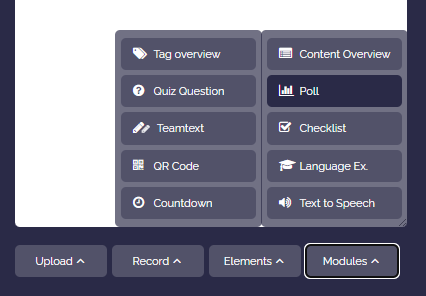
To do this, open the box editor, click on “Module” and choose “Poll”.
-
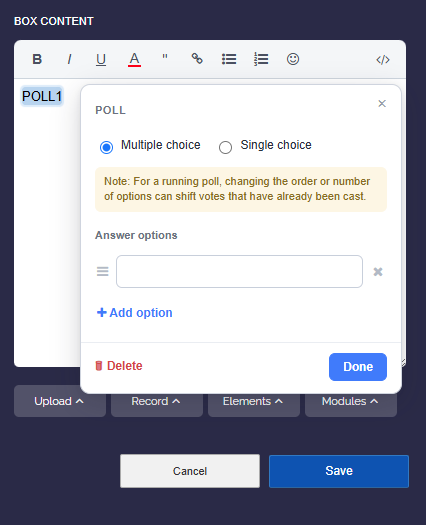
Confirm whether you want to allow a “single selection” or “multiple selection”.
-
Enter the poll data, which you can modify as you wish.
3
Set up a Poll - Instructions
-
Please note:
-
- A box may contain only one poll.
- Create new boxes on your map for additional polls.
- ⚠️ Do not modify the poll once votes have been cast! Otherwise, the assignments of the previous votes will change and become incorrect.
- If you are in syntax mode, you must not change the tags
<poll>and</poll>.
5
Show list of all Votes
-
As the map owner, you can view all votes by clicking on one of the voting counters:
-
Teacher and admin accounts also have access to the voters list. Student accounts, however, do not.
-
The list of all votes looks, for example, like this:
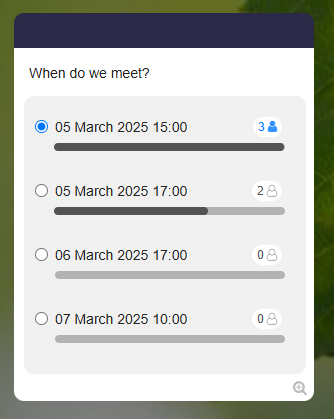
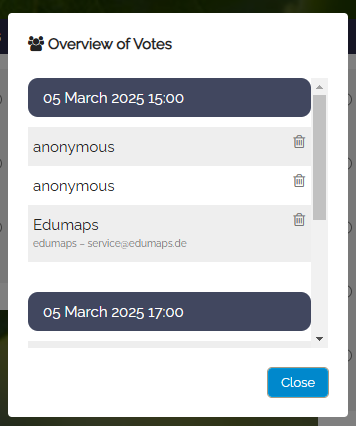
6
Remove Votes
-
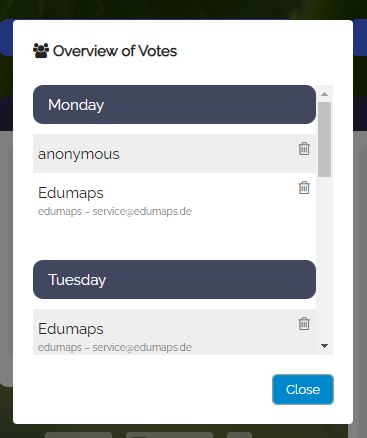
You can remove votes at any time by clicking on one of the voting counters. This will bring up a list of all the votes in the poll.
-
For each user, there is a remove icon on the right:
7
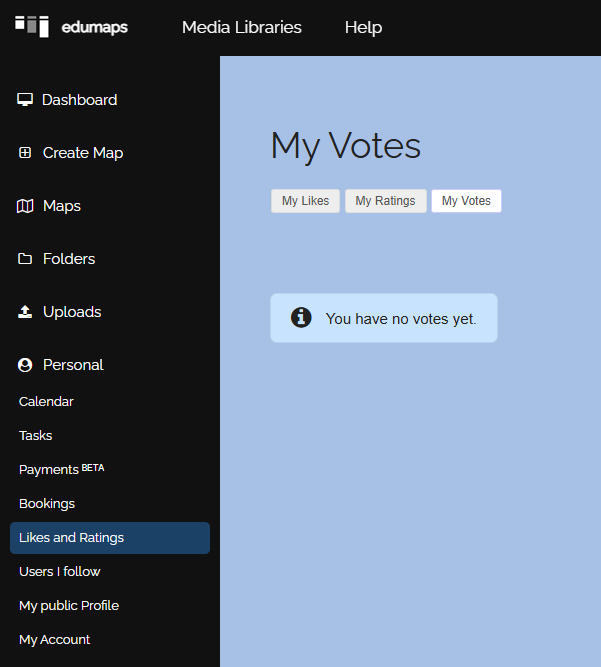
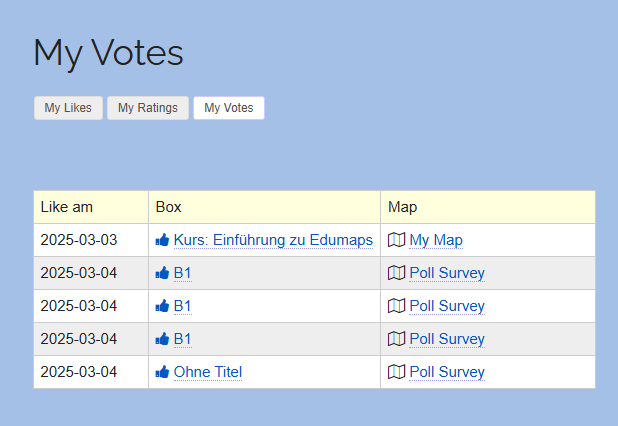
Overview “My Votes”
- On the page “My Votes”, every user can see which polls they participated in and how they voted.
-
There, one can reopen the polls.