

4.6 Edit an Existing Pinboard with AI
Edumaps Tutorial Edumaps
1
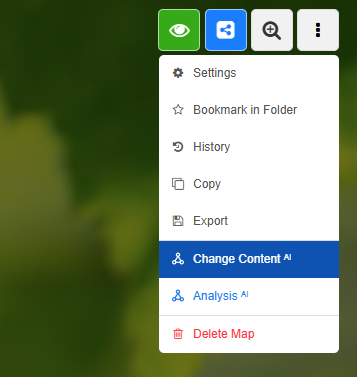
Menu entry to change the map
-
- Open a map for which you have editing rights.
- Open the map dropdown at the top right.
- Select "Change Content ᴬᴵ".
2
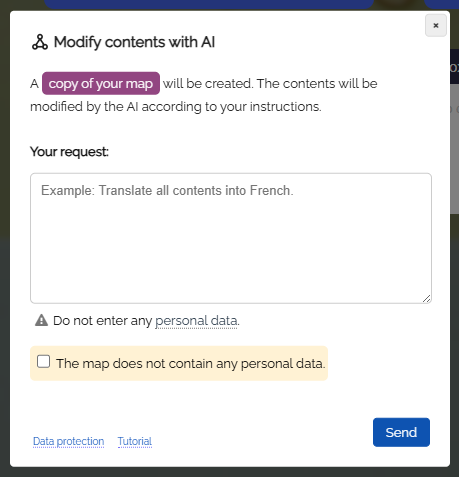
Dialog: Change content with AI
-
In the dialog that opens, enter your request.
-
A copy of the current map will be created and processed by the AI module according to your request.
-
You can also add new boxes or even remove boxes - depending on your request.
3
New altered pinboard
-
Changing the map takes up to 120 seconds depending on the scope and task.
-
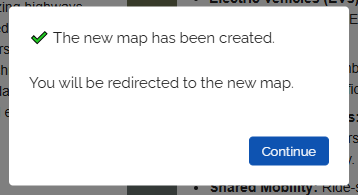
After completion, you will receive a success message:
4
Post-editing
-
You now have the possibility to edit the created pinboard afterwards as you wish.
-
- You can directly edit the content in the boxes yourself.
- You can add speech synthesis to texts.
- You can click on "Media search" in the box menu and add images or videos to the topic.
- You can create new boxes with AI by clicking on the three dots next to the "New box" button and selecting "New box with AI" in the dropdown.
- You can rewrite box content (for example, change the content to another level) by opening the box menu on the box and selecting "Change Content ᴬᴵ" in the dropdown.