4.2 Create a Language Course with AI
Edumaps Tutorial EdumapsIntroduction
-
✔️ With Edumaps, you can create a language course in just a few seconds.
-
✔️ Simply specify the language, a topic, and the level or target group.
-
✔️ You can edit the automatically created language course at any time afterwards.
-
✔️ All generated audio files for words and texts can be edited later via text and will be regenerated automatically.
1
Menu for creating a Language Course
-
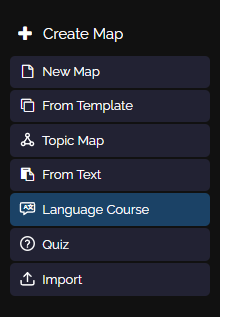
Click on “Create Map” in the left sidebar and then select “Language Course”.
2
Dialog: Create Language Course with AI
-
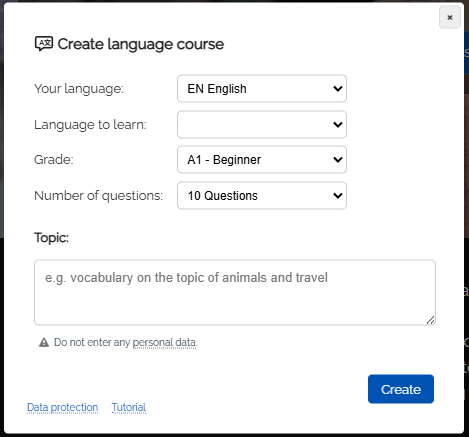
The dialog “Create Language Course with AI” opens.
-
Here you can specify the following:
-
- Your language (source language)
- Language to learn
- Grade
- Number of questions
- Topic
-
Specify a clear topic. You can also add further details or requests as free text.
-
Then click the “Create course” button.
3
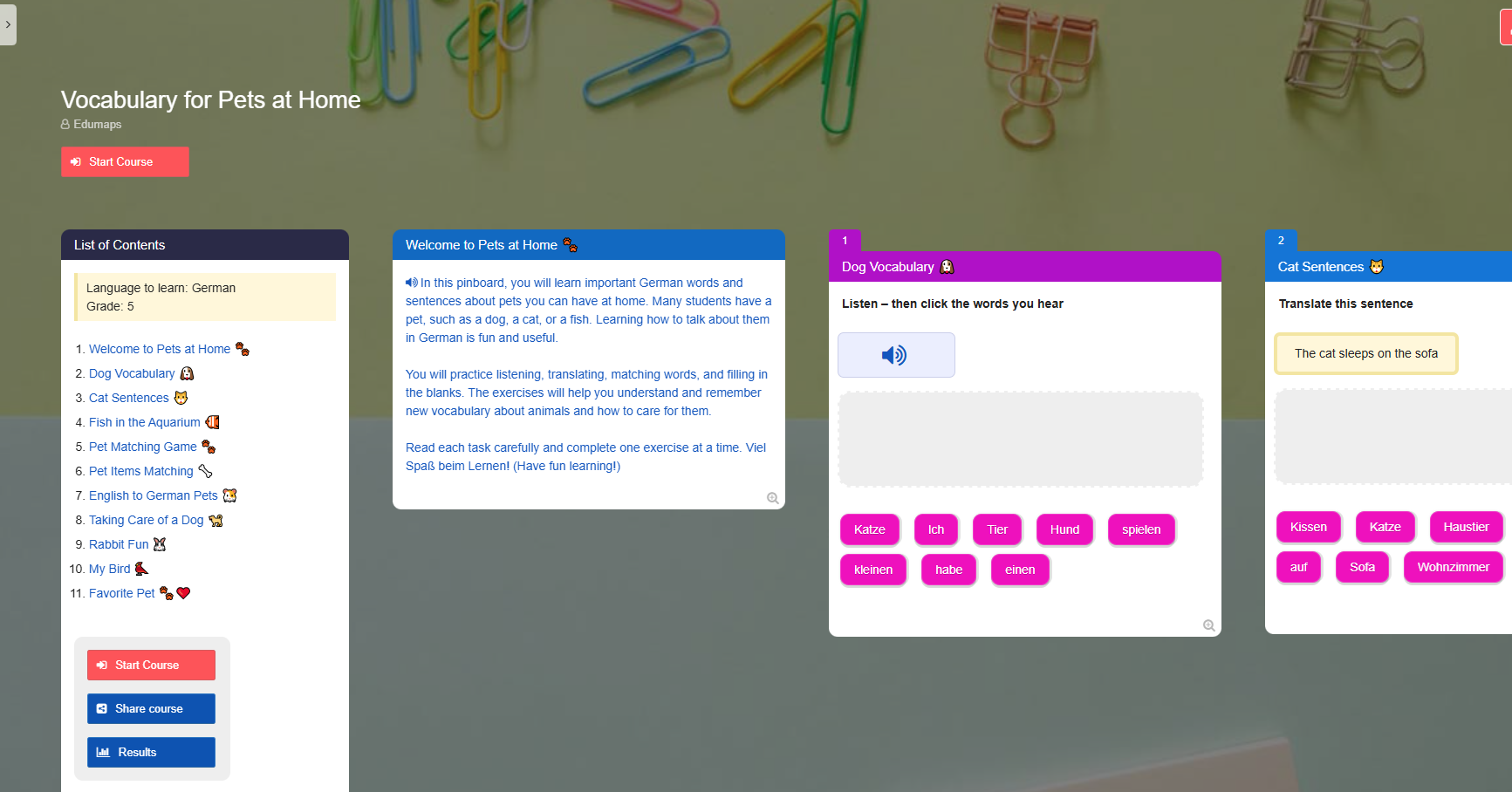
Language course successfully created
-
Automatically creating the language course takes about 30 seconds, depending on the topic and number of questions.
-
A second dialog “Generating audio. Please wait …” will also appear - after that, you will be redirected to the finished language course.
4
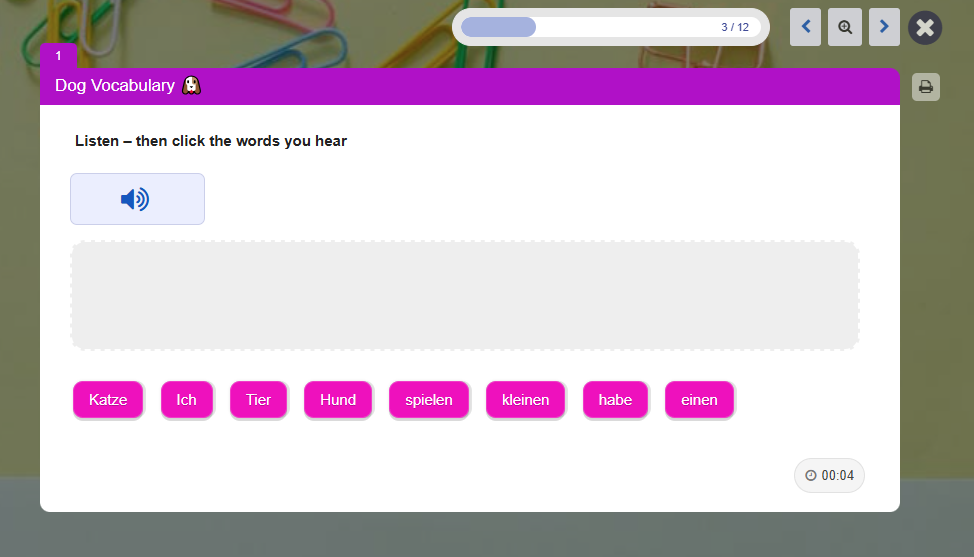
Start Language Course
-
Click on “Start course” to open the first box in full view - and the course begins.
5
Share Course
-
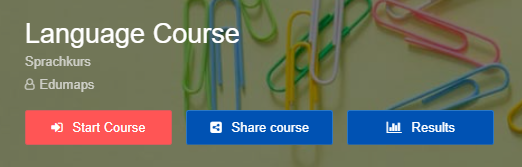
Below the headline you will find three buttons (as map owner):
-
With these buttons you can:
-
- start the course
- share the course with your students
- view your students’ results
-
Tips:
-
Click on “Share course” and let your students scan the QR code. This allows them to start the course immediately.
-
Students can participate anonymously (without an Edumaps account).
6
Student Results
-
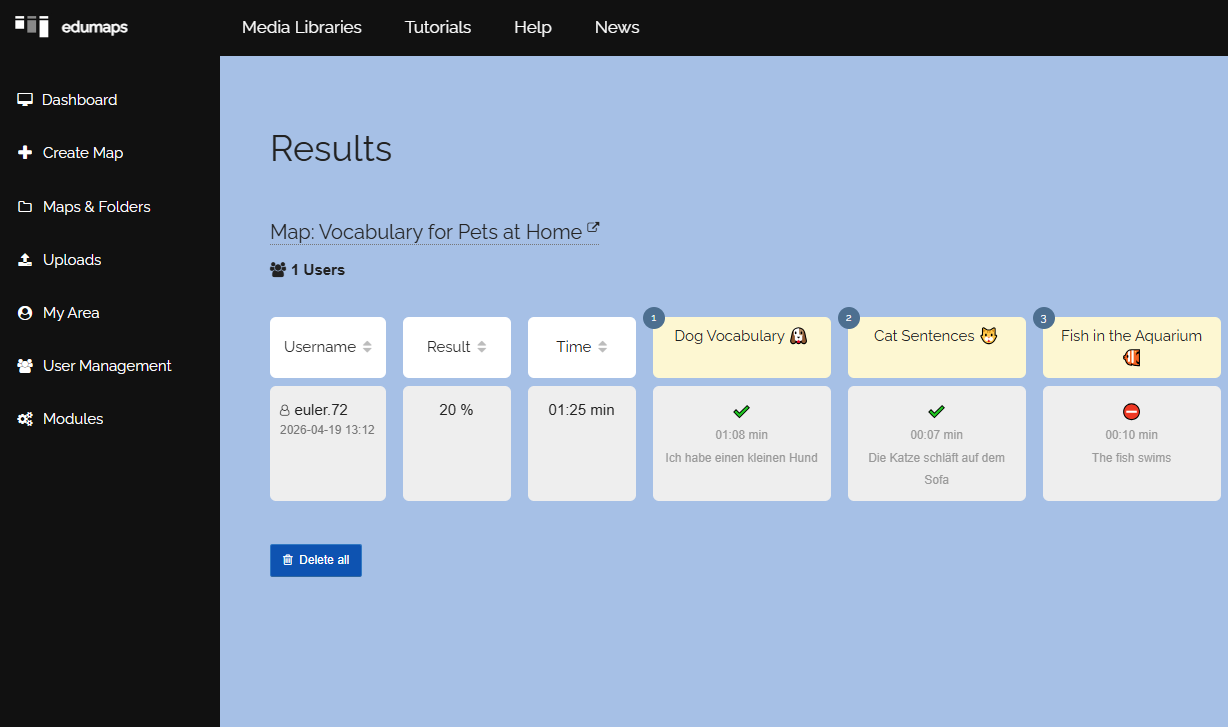
Click on “Results” in the first box to view all your students’ results.
-
There you can also see how long each student needed for each question. You will also see the top performer marked with a crown.
-
Please note that only the first submission is counted. A second attempt will not be evaluated.
7
Editing Afterwards
-
You can edit the automatically created language course at any time.
-
Warning: Only edit the language course if no results have been submitted yet!
-
If you would like to fundamentally change a language course that already has results, please copy the map and edit the copy. Then distribute the new map/language course again.
-
- You can directly change the content in the boxes yourself using the box editor.
-
- Pay attention to the structure of each task and do not change it. The structure is usually:
-
Original sentence
Translation into native language
Additional words to choose from -
- You can add new task types. In the box editor, click on “Modules” and then on “Language Exercise”. Then select the task type and use the input form.
8
Helpful Tips
-
You can open each question directly from the map by clicking the magnifying glass icon at the bottom right.