

2.2 Make Maps available within the School
EdumapsIntroduction
-
✔️ With Edumaps, you can easily make your maps available to all teachers and students at your school.
-
✔️ You can also share maps specifically with selected groups and users only.
-
-
Notes
-
- "Publish" determines where a map is visibly offered.
- "Protect" limits who is allowed to open a map.
- "Share" grants specific access to classes and users.
1
Publish to Entire School
-
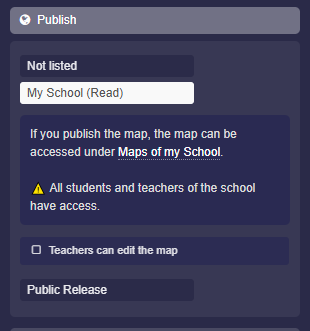
You can publish a map so that it is displayed to all members of your school on the "My School" page.
-
To do this, use the "Publish" category in the map settings.
-
You can open the map settings as follows:
-
- Click the red edit icon at the top right of the map.
- Click on the map title.
- The map settings will open in the sidebar.
- Click on "Publish"
- Activate "My School (Read)" and save.
-
This results in the following:
-
- The map appears on the "My School" page.
- All teachers and students have access to the page and therefore to your map.
-
⚙ school
2
Publish to Entire School - Students Can Read, Teachers Can Edit
-
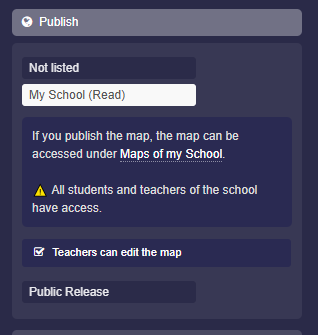
If you share a map with the school, you can also specify in the map settings under "Publish" that teachers are allowed to edit the map.
-
This means teachers will find the map linked for editing on the "My School" page. Students, however, will still only have read access.
-
⚙ schooledit
3
Access Only for Members of My School
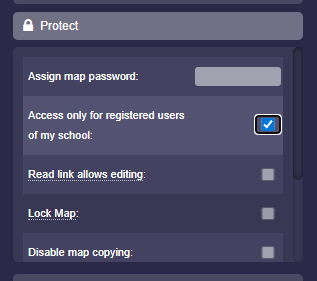
- You can set that only users who belong to your school (viewable in the "List of all accounts") are allowed to open your map. Other users will not have access.
-
To do this, activate the option "Access only for registered users of my school" in the map settings under "Protect".
-
⚙ protect
4
Protect Map with Password
-
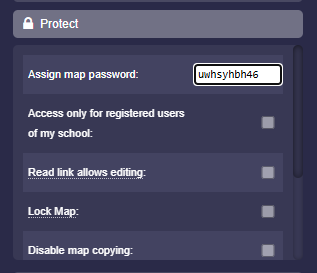
You can assign a password to your map. The map will then only be shown to users who enter the correct password.
-
To do this, you will find an input field for the map password in the map settings under "Protect".
-
⚙ password
5
Individual Sharing of the Map
-
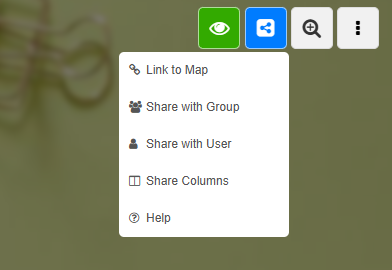
You can share your map individually via the map sharing dropdown.
-
In the map sharing dropdown, you will find the following options:
-
- Link to Map
- Share with Group
- Share with User
- Share Columns
-
These options are explained here: Tutorial: Sharing maps with links
-
⚙ individual
6
Additional: Public Release of a Map
-
This option is not intended for internal school sharing, but it is still a way to publish a map.
-
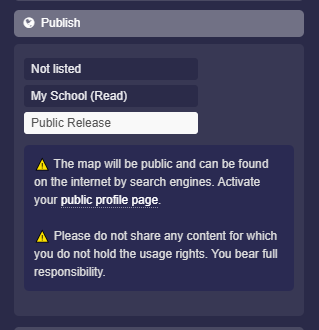
Under "Publish", you can make the map discoverable for the entire internet.
-
Select "Public Release" and save the map to make it publicly available.
- In addition, you must activate your public profile page so that the maps can be found.
-
-
⚠️ The map will be public and can be found on the internet by search engines.
-
⚠️ Do not share any content for which you do not have usage rights. You bear full responsibility.
-
⚙ publish
