

4.8 Edit Existing Boxes with AI
Edumaps Tutorial Edumaps
1
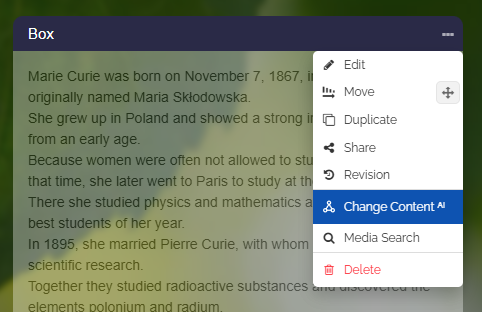
Menu Entry for Changing the Box
-
1. Open a map in edit mode.
-
2. Navigate to a box and open the dropdown in the top right corner.
-
3. Select “Change Content ᴬᴵ”.
2
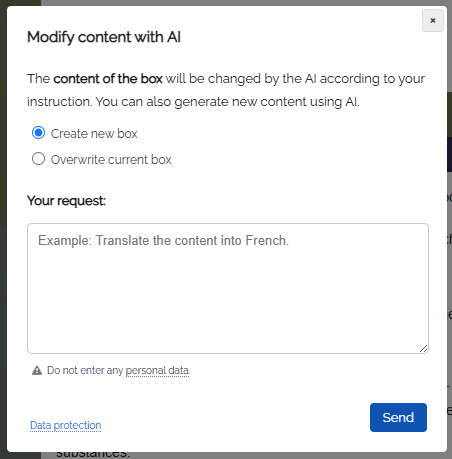
Dialog: Change Box Content with AI
-
In the dialog that opens, enter your request.
-
The box content will be changed directly.
-
In the box history, you can restore the previous version if needed.
3
New Edited Box
-
Changing the box takes 10 to 30 seconds depending on the request.
-
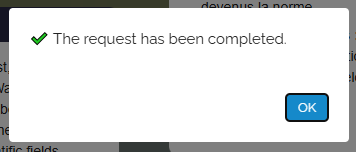
You will receive a success message when finished:
-
The new box is displayed immediately.
4
Post-Processing
-
You now have the option to edit the created box as you wish.
-
- You can directly change content in the box yourself.
- You can add texts with speech synthesis.
- You can click "Media search" in the box menu to add images or videos related to the topic.
- You can rewrite the box content (for example, adjust the level) by opening the box menu and selecting "Change Content ᴬᴵ" from the dropdown.