

4.7 Analyzing Maps with AI
Edumaps Tutorial Edumaps1Introduction
-
✔️ With AI analysis, you receive a didactic assessment of your map in just a few seconds.
-
✔️ The AI evaluates the structure, completeness, and clarity of the content and provides specific suggestions for improvement.
-
✔️ You can freely adjust the analysis prompt and ask your own questions about your map.
-
✔️ This feature is available to teachers with editing rights for the map.
📑 Table of Contents
-
- Menu Entry for AI Analysis
- Dialog: AI Analysis of the Map
- Analysis Result
- Using the Analysis Further
- Didactic Quality Check
- Clarity for a Grade Level
- Completeness and Subject Accuracy
- Feedback on Student Work
- Deriving Tasks from the Map
- Check the Map for Language and Spelling
- Improve the Structure of the Map
- Check Language for the Target Group
- Suggestions for Improving Individual Boxes
1
Menu Entry for AI Analysis
-
1. Open a map for which you have editing rights.
-
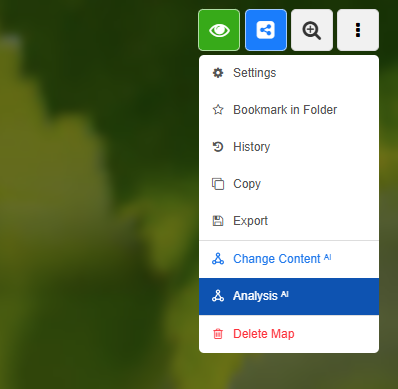
2. Click the three dots in the top bar and select “AI Analysis”.
2
Dialog: AI Analysis of the Map
-
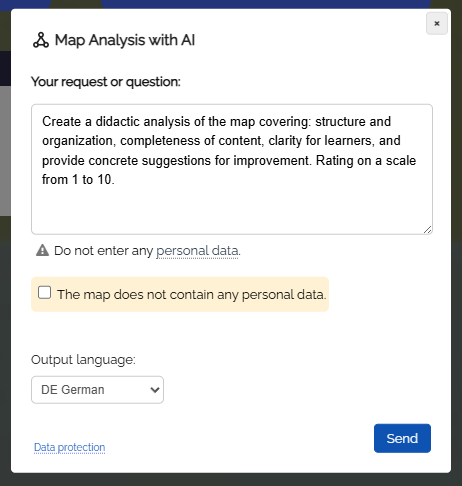
The “AI Analysis of the Map” dialog opens. A proven analysis prompt is already preset there:
-
“Create a didactic analysis of the map regarding: structure and organization, completeness of content, clarity for learners, and provide specific suggestions for improvement. Rating on a scale from 1 to 10.”
-
You can use this prompt directly or adapt it to your needs. (Further examples can be found on this map.)
-
Then click the “Analyze” button.
-
Note: For the analysis, the content of the map is transmitted to the AI module. Please make sure that the map does not contain any personal data.
3
Analysis Result
-
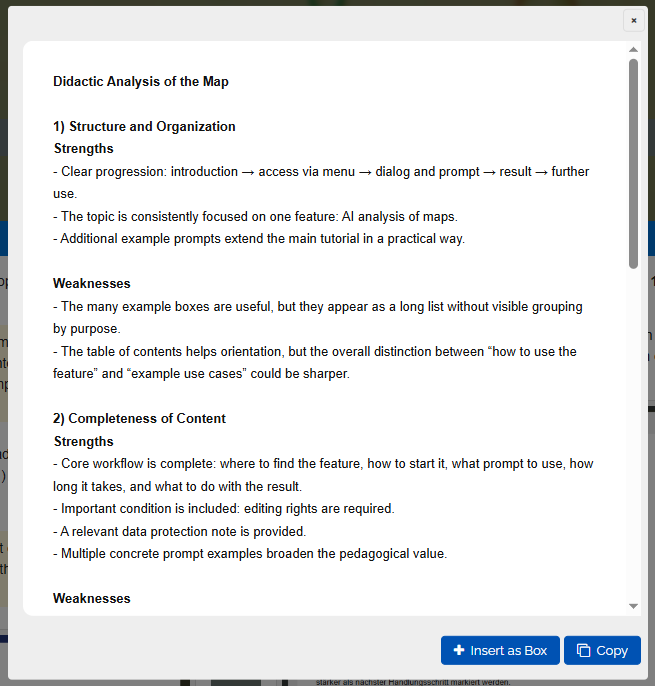
Depending on the size of the map, the analysis takes about 10 to 30 seconds.
-
The result is displayed directly in the dialog, for example with ratings for structure, completeness, and clarity, as well as an overall assessment on a scale from 1 to 10.
4
Using the Analysis Further
-
You have several options for continuing to work with the result:
-
- Click “Insert as Box” to save the analysis as a new box in your map. This keeps the feedback available so you can work through the suggestions step by step.
- Implement the suggestions for improvement directly, for example by rearranging boxes or adding missing content.
- Then use “Change Content ᴬᴵ” in the box menu to have individual box content rewritten according to the suggestions.
- Run the analysis again after revising the map and compare the rating.
Example 1
Didactic Quality Check
-
Check your map before sharing it with the class using the preset prompt:
-
“Create a didactic analysis of the map regarding: structure and organization, completeness of content, clarity for learners, and provide specific suggestions for improvement. Rating on a scale from 1 to 10.”
-
Ideal as a quick quality check before you share the map with learners.
-
⚙ examples
Example 2
Clarity for a Grade Level
-
Have the AI check whether the content matches the level of your learner group:
-
“Check whether the content of the map is understandable for learners in grade 7. Name technical terms and formulations that should be simplified, and provide specific suggestions for easier wording.”
-
Especially helpful for differentiation and for German as a second language learner groups.
Example 3
Completeness and Subject Accuracy
-
Have the map checked for gaps and errors:
-
“Check the content of the map for subject accuracy and completeness on the topic. Name factual errors, missing subtopics, and outdated information. Suggest which boxes should be added.”
-
This helps you identify missing subtopics before the map is used in class.
Example 4
Feedback on Student Work
-
Use the analysis to support the assessment of your learners’ project pinboards:
-
“Assess this student work according to the following criteria: depth of content, structure, language quality, and clarity. Formulate appreciative feedback for each criterion with one specific tip for improvement. Rating on a scale from 1 to 10.”
-
You can insert the result as a box and share it with learners as feedback.
Example 5
Deriving Tasks from the Map
-
Use the content of the map to create practice material directly:
-
“Based on the content of this map, create 5 quiz questions with answers and 3 open discussion questions for class. Sort the questions by difficulty.”
-
You can insert the questions as a box and use them, for example, as a lesson starter or for review.
Example 6
Example 8