1.7 Anchor Links (Jump Links)
Edumaps Tutorial Edumaps
1
Create Anchor Links
-
Let us assume you want to create a table of contents. Follow these steps:
-
- Open the box you want to link to with the Box Editor.
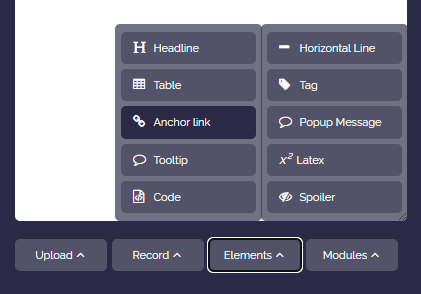
- Click on “More” and from the dropdown menu select “Layout” and then “Anchor link”.
-
-
!#anchorwill be inserted in the box content (as a template). - Rename the anchor as you wish, for example to
!#start1. Make sure that the anchor word is a single word and that the characters!#are placed directly in front of the word (no spaces, all in lowercase). - Save the box.
-
-
The anchor link is now linked to the box and can be used for navigation (linking).
-
⚙ create
2
Linking Text with Anchor Links
-
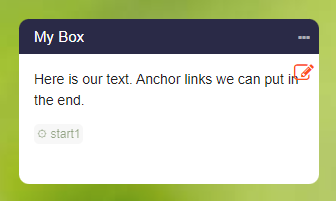
If an anchor link is associated with a box, you will see the anchor word in edit mode as follows:
-
You can now use this link for navigation.
-
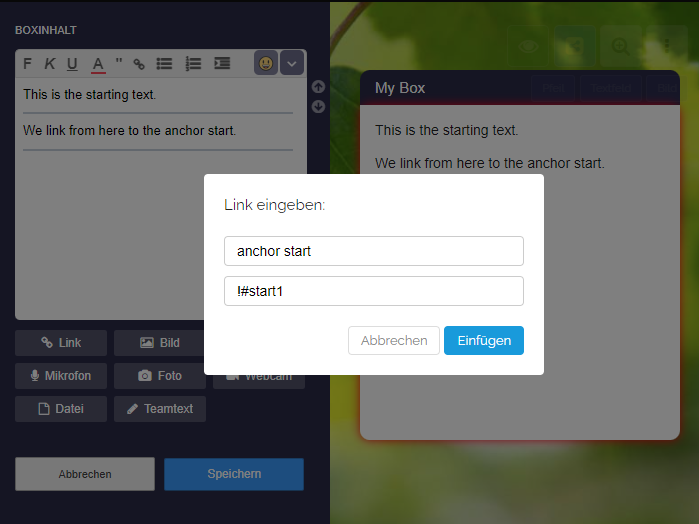
- Open the box editor for the box where the link should be added.
- Write your text.
- Select a word in the text with the mouse and click on the "Insert Link" button.
- Enter your anchor link, for example
!#start1. - Save the box.
-
⚙ linking
3
Navigation with Anchor Links
-
When you click on the provided link, the map will scroll to the linked box (where the anchor link is located) and the box will blink three times.
-
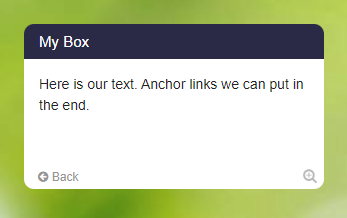
Additionally, a small back button will appear at the bottom left of the box.
-
However, you can also use the browser's back button (or the back button on your mouse) to return to the previous box.
-
4
Example map with anchor links
-
In the following example map, you can see how navigation with anchor links works.
-
If you click on a link in the table of contents, the view moves to the corresponding box.
-
If you use the back button on the box or the back button in the browser, it navigates back to the table of contents.
-
⚙ example
6
Map Sharing Links with Anchor Links
-
Anchor links can be used for map self-navigation. For example, for a list of all courses in the first box on the map or for a table of contents.
-
However, you can also append an anchor link to your map sharing link to directly link to any box on other maps as well.
-
To do this, simply add the anchor link to the end of the map sharing link with
#myanchor(without exclamation mark). -
When you then call up this link, it will automatically scroll to the linked box and the box will blink.
-
⚙ anchorlinks
7
Formatting of Anchor Links
8
Anchor Links in Text Labels
-
Anchor links can also be set in text labels. This allows for additional applications:
-
- Jump from text label to text label
- Jump from text label to box
- Jump from box to text label
-
When jumping to a text label, the text label blinks three times and is briefly marked in red.
-
Input for the target text label:
-
My text here !#target -
Input for the linking text label:
-
My {link to the text label}{!#target} -
⚙ textlabels