3.4 Embed Columns from other Maps
Edumaps Tutorial EdumapsIntroduction
-
✔️ By embedding columns from other maps, you can make individual columns centrally available on many maps.
-
✔️ If you update a column, it will be updated in all embedded places. In this way, you can make information widely available with only one change to one column.
-
Embedding is possible with just a few clicks. Here we will briefly show you how to proceed.
1
Embed Columns from other Maps (Part 1/4)
-
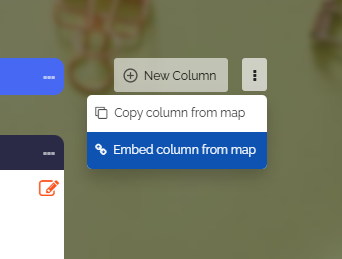
To embed an external column from another map, click on the three dots to the right of the "New Column" button. A dropdown will then open. Select “Embed column from map” there.
-
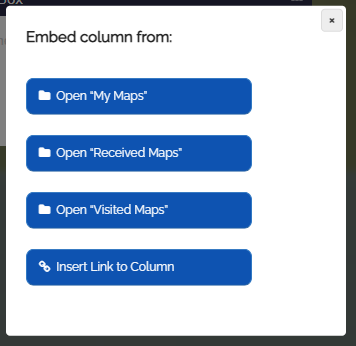
Clicking on it will bring up the following selection, where the column can be searched:
-
So you can choose:
-
In fact, you can embed a column into your map from all other pages that list maps.
2
Embed Columns from other Maps (Part 2/4)
-
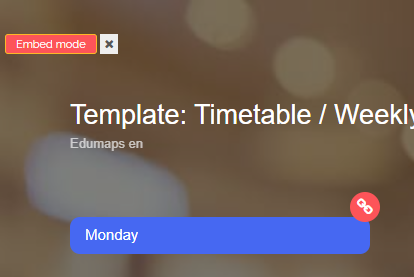
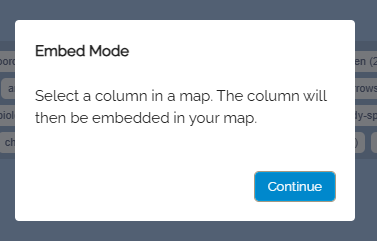
When selecting the page such as “My Maps”, you will be redirected to the corresponding page. There, a notification appears indicating that you are now in embed mode.
-
Now open a map from the map list.
-
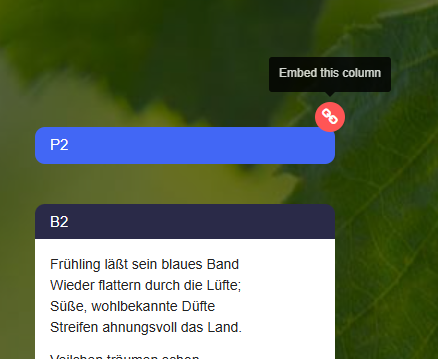
In the map view, you can recognize the active embed mode by the red and white link symbols on the columns as well as the small red "Embed Mode" banner at the top left.
-
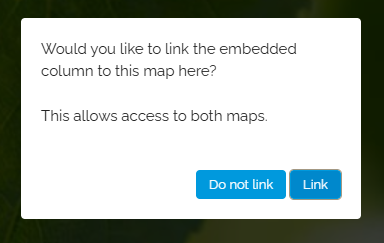
Simply click on a red-white link symbol, and the following prompt appears:
-
Do you want to link the column to be embedded to this map here? This allows access to both maps.
-
Confirm with "Do not link" or "Link".
-
Now the corresponding column is automatically embedded on your map.
-
You will now be redirected back to your map.
3
Embed Columns from other Maps (Part 3/4)
-
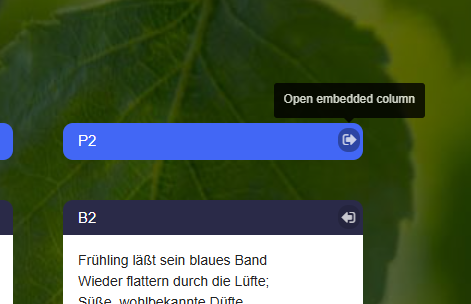
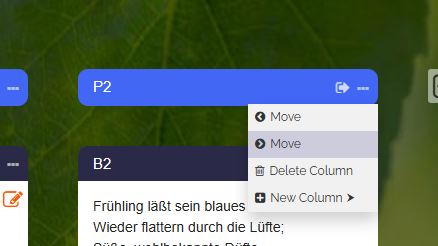
You can now recognize the embedded column by a small icon at the top right of the column.
-
If you have chosen "Link", you can access the source map. If you have chosen "Do not link", the link to the source map remains hidden.
-
Edit Mode
-
Note that embedded columns and their boxes are treated differently in edit mode. Their content is protected and cannot be edited.
-
Additionally, you can only move and delete embedded columns.
4
Embed Columns from other Maps (Part 4/4)
-
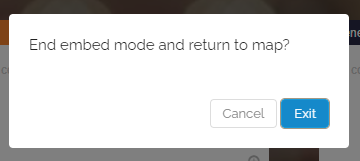
If you want to exit the embed mode, you can click on the red banner "Embed Mode" in the top left corner. This exits the embed mode and you return to your map.
-