4 / 6
2
Embed Columns from other Maps (Part 2/4)
-
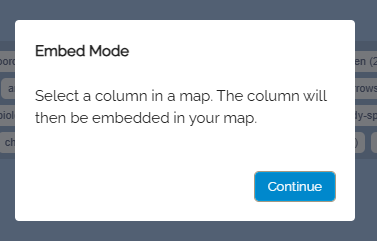
When selecting the page such as “My Maps”, you will be redirected to the corresponding page. There, a notification appears indicating that you are now in embed mode.
-
Now open a map from the map list.
-
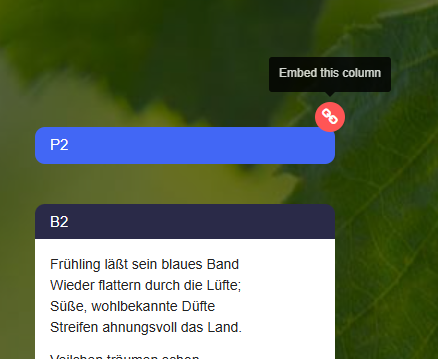
In the map view, you can recognize the active embed mode by the red and white link symbols on the columns as well as the small red "Embed Mode" banner at the top left.
-
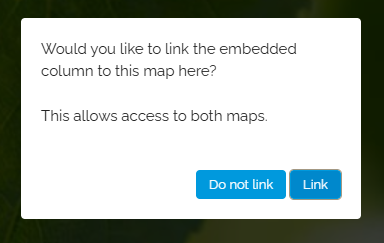
Simply click on a red-white link symbol, and the following prompt appears:
-
Do you want to link the column to be embedded to this map here? This allows access to both maps.
-
Confirm with "Do not link" or "Link".
-
Now the corresponding column is automatically embedded on your map.
-
You will now be redirected back to your map.