3 / 7
2
Embed external Boxes (Part 2/4)
-
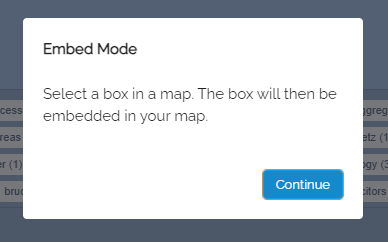
By selecting the page such as “My Maps” you will be redirected to the corresponding page. There you will see the note that you are now in the embedding mode.
-
Now open a map from the map list.
-
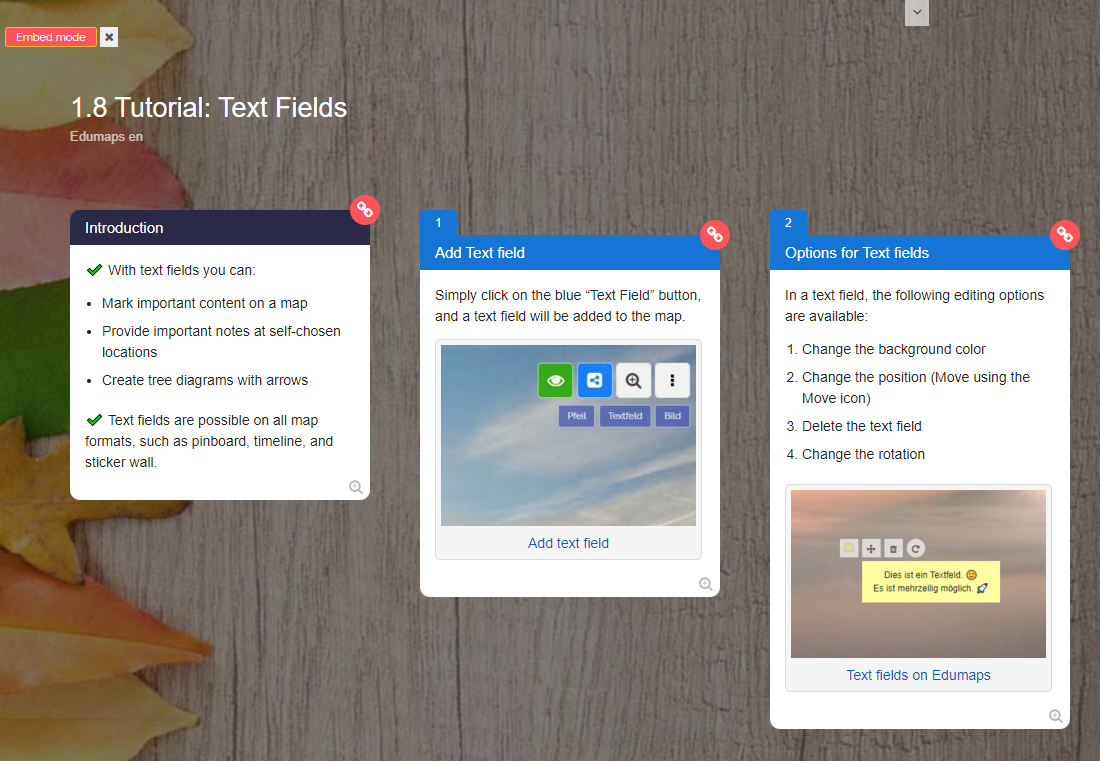
In the map view, you can recognize the active embedding mode by the red-white link symbols on the boxes as well as the small red banner “Embedding Mode” at the top left.
-
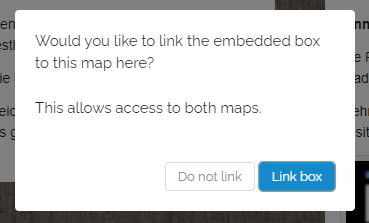
Simply click on a red-white link symbol, then the following query appears:
-
Do you want to link the box to be embedded to this map here? This allows access to both maps.
-
Confirm with “Do not link” or “Link box”.
-
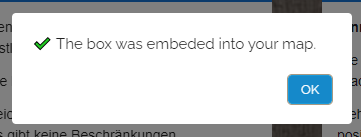
Now the corresponding box will be automatically embedded in your map.
-
Now you will be redirected back to your map.