3 / 4
2
Copy external Columns (Part 2/3)
-
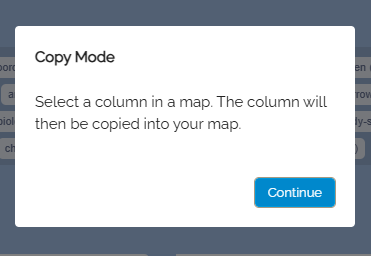
When selecting the page, such as “My Maps”, you will be redirected to the respective page. There, a note appears indicating that you are now in copy mode.
-
Now open a map from the map list.
-
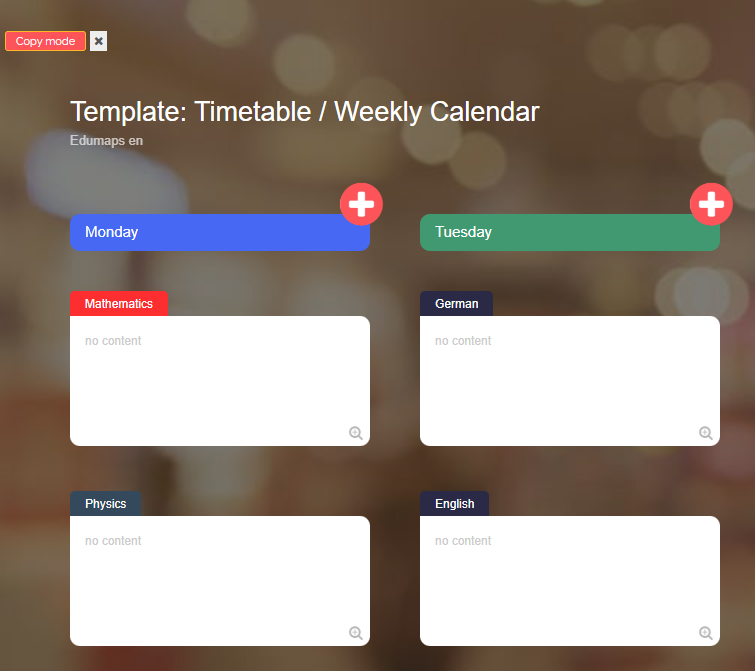
In the map view, you will recognize the active copy mode by the red and white crosses on the columns and by the small red banner "Copy Mode" at the top left.
-
Now click on a red-white cross, and the corresponding column will be automatically copied to your map. Complete with all included boxes.
-
You will now be automatically redirected back to your map.