3
Edit or delete an existing Link
-
All created links can be edited afterwards and the column access rights changed or even removed.
-
Simply click the blue share button and select "Share column groups".
-
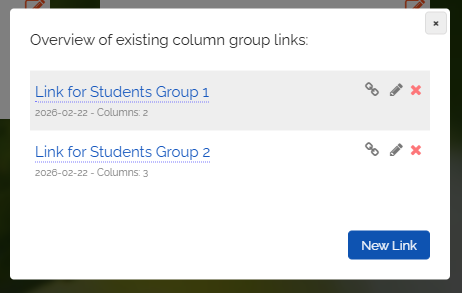
An overview of all column group links you've already created will appear.
-
- Click the link icon to copy the link.
- Click the pencil icon to edit the link.
- Click the red cross icon to delete the link.
-
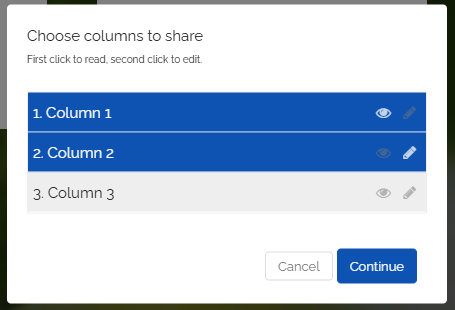
Click the pencil icon, and the following dialog appears:
-
Click the respective columns to set permissions:
-
First click is read-only,
second click is edit,
third click removes all permissions for the column. -
Click “Next”; you can optionally change the title and enable “Access only with login”. Then click “Save”. The sharing dialog will be displayed.
-
It is the same link as before. Your students can still use the same link.
-
⚙ a3