5.7 Personal Calendar
Edumaps Tutorial Edumaps1Introduction
-
✔️ With the calendar system, you have a powerful tool for various scenarios at your disposal.
-
- Each user has their own calendar. See the page “My Calendar”.
- A separate calendar can be activated for each box. See the tutorial: Using the Calendar for Boxes.
- Calendars can be subscribed to and will appear in your own calendar.
1
Scenarios and Examples
-
Scenario: Timetable
-
- A class teacher creates a timetable for their class (the "Calendar" option must be enabled in the box settings for this).
- All students log in, visit the calendar, and click the "Subscribe to Calendar" button.
- Now, each student has the class teacher's calendar events in their personal calendar.
-
Scenario at a School
-
- Mr. Miller creates a calendar with math exams.
- Ms. Schneider creates a calendar with school music events.
- The school office creates a calendar with all vacation times and all local celebrations.
-
The students receive all three calendar links and subscribe to the calendars.
-
After that, the students always have all the dates in their calendar.
-
If a teacher changes a date in their calendar, all students will see this change in their own calendars.
2
Personal calendar
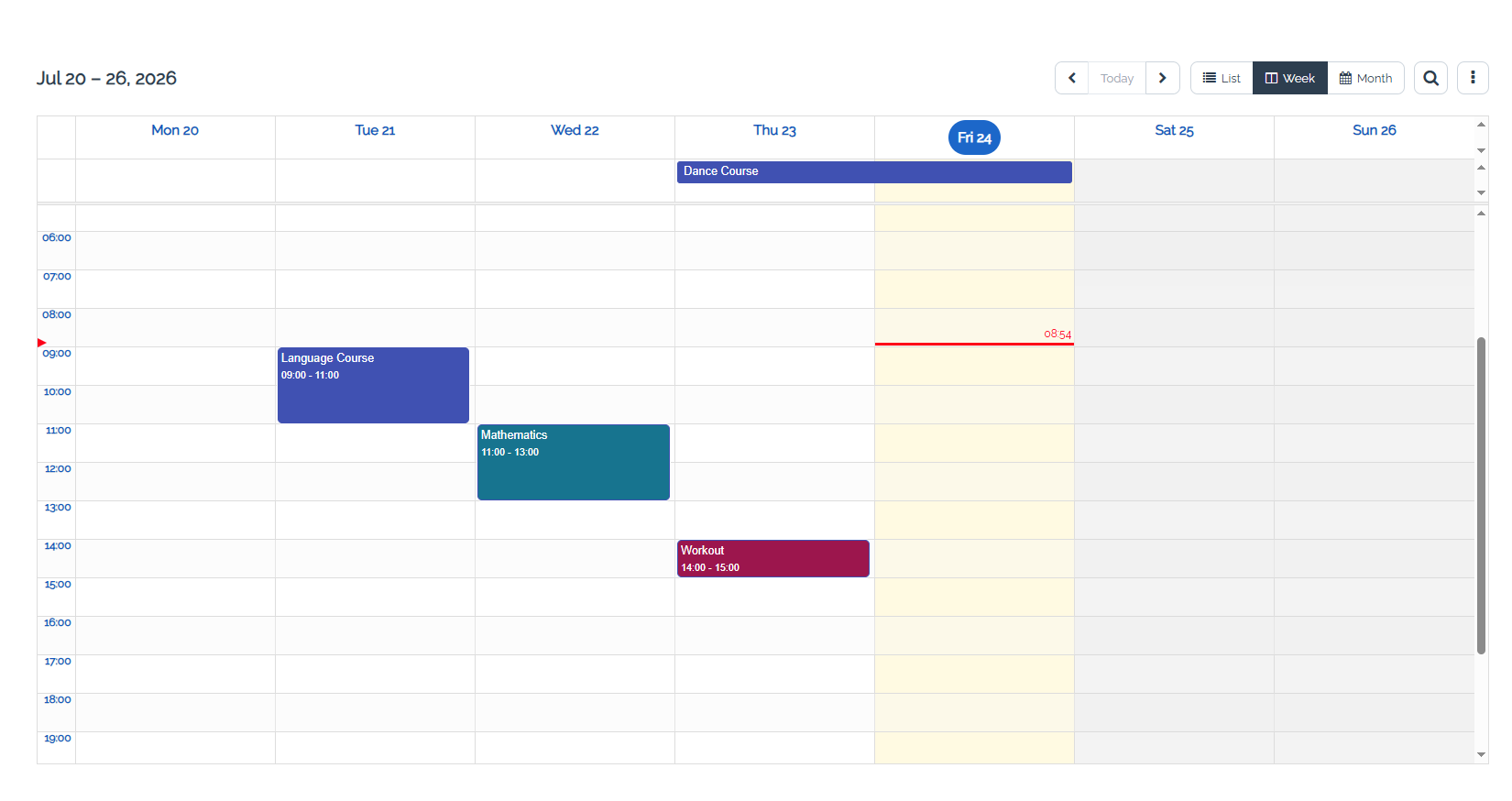
- Every user has their own personal calendar. This can be found via the user menu top right which opens the page “My Calendar”.
-
In this calendar, each user can enter their own appointments/events.
-
Additionally, all events from subscribed calendars are shown there.
-
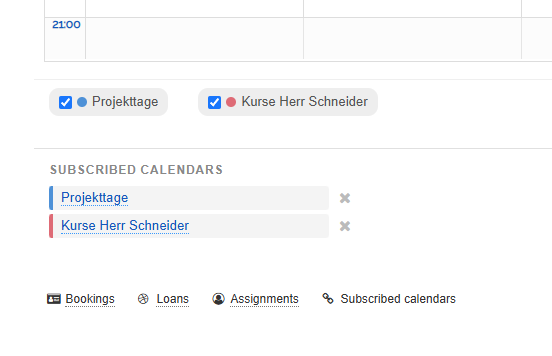
A list of all subscribed calendars can be found below the calendar.
-
⚙ intro
3
Subscribe to box calendar
-
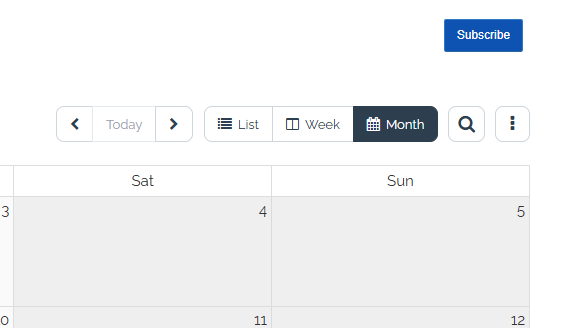
If you open a box calendar, you will find the blue button "Subscribe" in the top right corner.
-
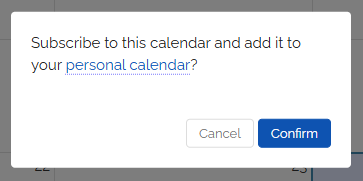
Click on it to confirm the subscription.
- Afterwards, you will find all the events from this calendar entered into your personal calendar.
-
-
The tutorial explains how subscribing works and how to cancel a subscription:
4
Unsubscribe from calendar
-
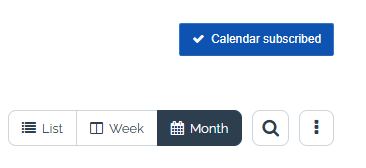
To unsubscribe from a calendar, visit the calendar and click the “Calendar subscribed” button in the top right corner.
-
Click on it to confirm the unsubscription.
- Afterwards, all events from this calendar will be removed from your personal calendar.
-
⚙ unsubscribe
5
Bookings and Reservations
- In addition to the appointments you have entered yourself and the appointments from subscribed calendars, your personal calendar also displays all your appointments from Bookings and Reservations.
-
⚙ bookings
6
Import External Calendars
-
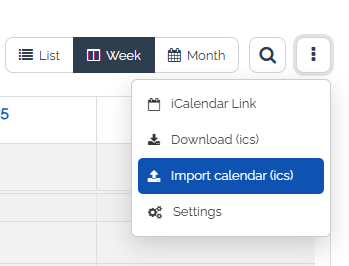
As the map owner, you will find the “Import calendar (ICS)” option in the calendar menu.
-
Here you can upload an ICS file. All events will then be imported automatically.
-
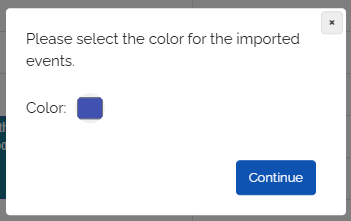
With the import you can choose a color for all imported events.
-
-
“ICS” stands for “Internet Calendaring and Scheduling Core Object Specification (iCalendar)”. It is a file format for sharing calendar information. Almost every external application allows you to export a calendar as an ICS file.
-
⚙ import