4.4 Text-to-Speech with a Natural Voice
Edumaps Tutorial EdumapsIntroduction
-
✔️ With the Text-to-Speech module from Edumaps, you can easily have any text - new or existing - read aloud automatically.
-
✔️ The text is read out with a natural-sounding voice.
-
✔️ More than 60 languages are available.
-
✔️ You can choose between typing new texts or using existing texts in your box and individually adjust the reading language.
-
✔️ Texts can be edited at any time.
1
Text-to-Speech with New Text
-
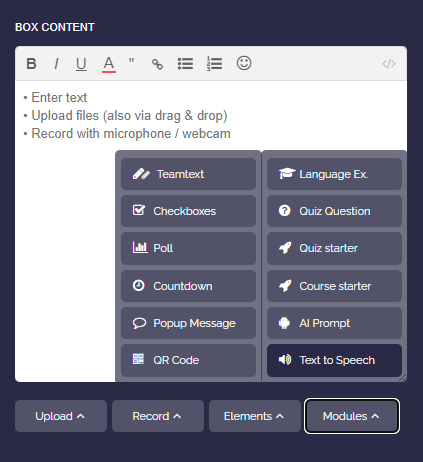
First, create a new box and select the Text-to-Speech module.
-
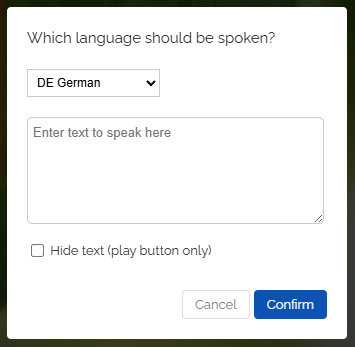
Select the reading language from the dropdown menu and then enter your desired text.
-
Optionally, you can enable “Hide text”. Then only the play button will appear and the text will be hidden.
-
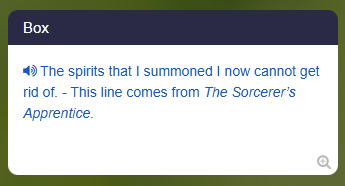
After that, save the box and you can have the text read aloud. Click on the text or the play icon to start.
-
Please note that the first click may require a few seconds of loading time.
2
Text-to-Speech with Existing Text
-
You can also use any existing text in a box and have it read aloud.
-
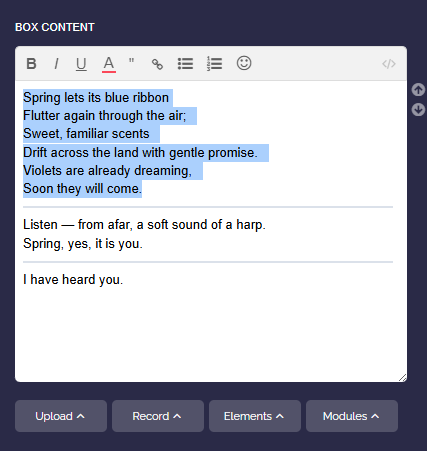
Open the corresponding box and use your mouse to highlight the text that should be spoken.
-
Then click on “Modules” and “Text-to-Speech”.
-
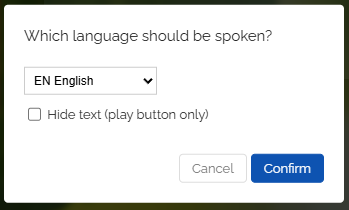
In the dialog, select the language of the text.
-
Optionally, you can enable “Hide text”. Then only the play button will appear and the text will be hidden.
-
Confirm and save the box.
-
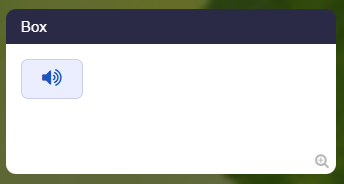
The existing text can then be read aloud automatically with a click.
3
Hide Reading Text
-
- If desired, the text can be hidden.
- Learners will then only hear the audio output without seeing the text.
- This is especially suitable for listening comprehension and language training.
- This mode is also very useful for dictations.
- Learners can fully concentrate on careful listening.
- It is particularly helpful for better perceiving pronunciation, word boundaries, and sentence melody.
-
Example: Text for dictation
-
-
When playing, a pause button and a stop button will appear.
-
The dictation can be paused and resumed at any time.
-
Technical note: To hide an existing text (that already has an audio tag), place an exclamation mark before the first word of the spoken text, for example:
<audio-en>!Hello ...
4
Solution to reveal (ideal for dictations)
-
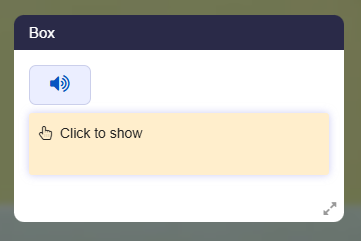
For dictations and listening comprehension, there is a convenience function: the reading text is hidden and appears below at the same time as a revealable solution (like spoiler text).
-
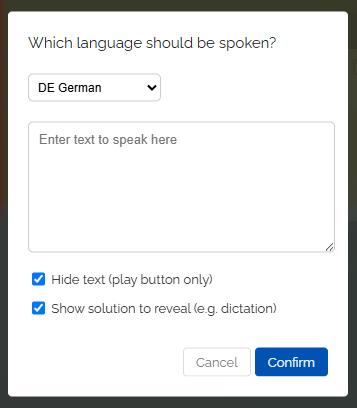
To do this, activate the option “Show solution to reveal” in the text-to-speech dialog.
-
In the map, learners then only see the play button and, below it, the field “Click to show”. They listen to the text, write along, and then reveal the solution with a click in order to check their own work.
-
-
Technical note: In the box editor, a double exclamation mark controls this function, for example
<audio-en>!!We fly over the ocean .... -
A single
!only hides the text, while a double!!hides it and additionally shows the solution to reveal. - You can find many ready-made examples in the template “Read Aloud & Audio - Examples".
5
Edit Reading Text Later
-
You can edit the reading text at any time afterward.
-
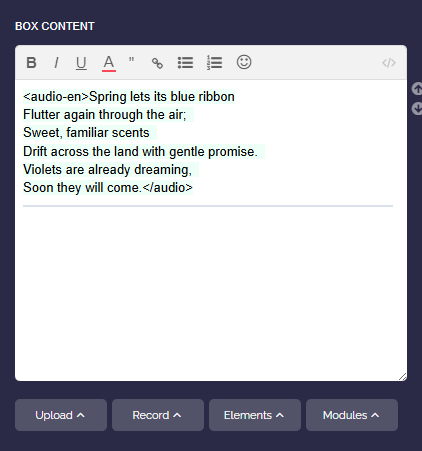
To do this, open the box in the box editor. You will then see the highlighted text. For example:
-
This audio tag works like simple HTML. If you are not familiar with it, you can simply leave the tag unchanged. Important: Do not modify the <audio> tag itself, only your text.
-
You can edit, add to, or shorten the text directly.
-
Then save the box and click on the text to start the audio output.
-
Please note that the first click may require a few seconds of loading time.