

5.5 Subscribe to and embed calendars
Edumaps Tutorial Edumaps1Table of Contents
-
2️⃣ Subscribe to calendars3️⃣ Embed calendars4️⃣ Practice & examples
1️⃣ Basics2
1
Three ways to share a calendar
-
Every box calendar can be made visible outside its box in three ways:
- 1. Subscribe - The events appear in your personal calendar on the "My Calendar" page.
-
2. Embed - The events appear in another box calendar, for example in a central school calendar.
-
3. iCalendar link - The events appear in external calendar apps such as Apple, Google, or Outlook.
-
All three methods are live connections: New or changed events in the source calendar are automatically adopted. You do not need to copy anything again.
2
Which method for which purpose?
-
Subscribe is suitable for individual users who want to see events from other calendars in their personal overview - for example, a teacher who subscribes to the class calendar.
-
Embed is suitable for map owners who want to combine several calendars in one place - for example, a central school calendar made up of all class calendars.
- iCalendar link is suitable for anyone who wants to see their events outside Edumaps - for example, as a widget on their phone.
- We describe the iCalendar method in the "Calendar per box" tutorial.
2️⃣ Subscribe to calendars3
3
Subscribe to a calendar
-
Open the box calendar you want to subscribe to.
-
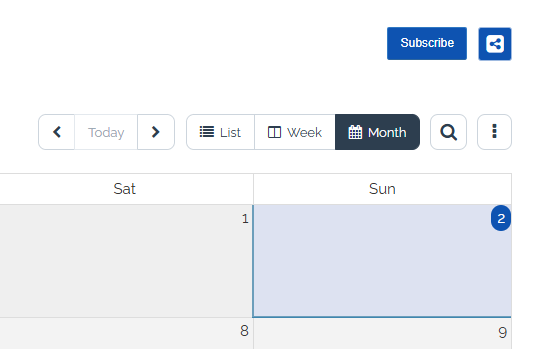
Above the calendar, you will find the "Subscribe" button.
-
When you click it, the calendar is subscribed immediately. You must be logged in to do this.
4
Events in "My Calendar"
- All events from the subscribed calendar will now appear on your personal “My Calendar” page.
-
You can subscribe to as many box calendars as you like and bundle all important events into one view.
- You can find more about the personal calendar in the “Personal Calendar” tutorial.
5
End a subscription
-
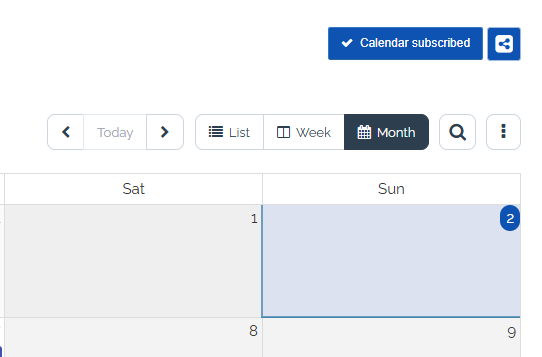
If you no longer want to subscribe to a calendar, open the box calendar again and click the “Calendar subscribed” button.
- The events will then disappear from My Calendar. The source calendar itself remains unchanged.
3️⃣ Embed calendars4
6
Embed a calendar step by step
-
Open the box calendar in which the events from other calendars should appear (the target calendar).
-
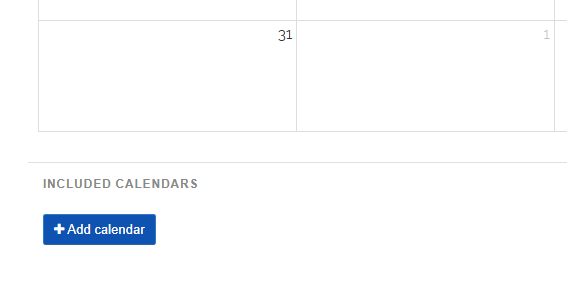
Below the calendar, you will find the “Add calendar” button.
-
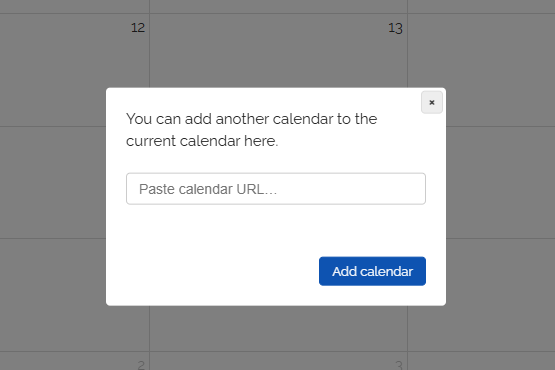
A dialog opens in which you enter the link to the source calendar. You can get this link directly in the source calendar by clicking the share button.
-
Confirm the selection, and all events from the source calendar will immediately appear in the target calendar.
-
You can embed as many calendars as you like into one box calendar.
7
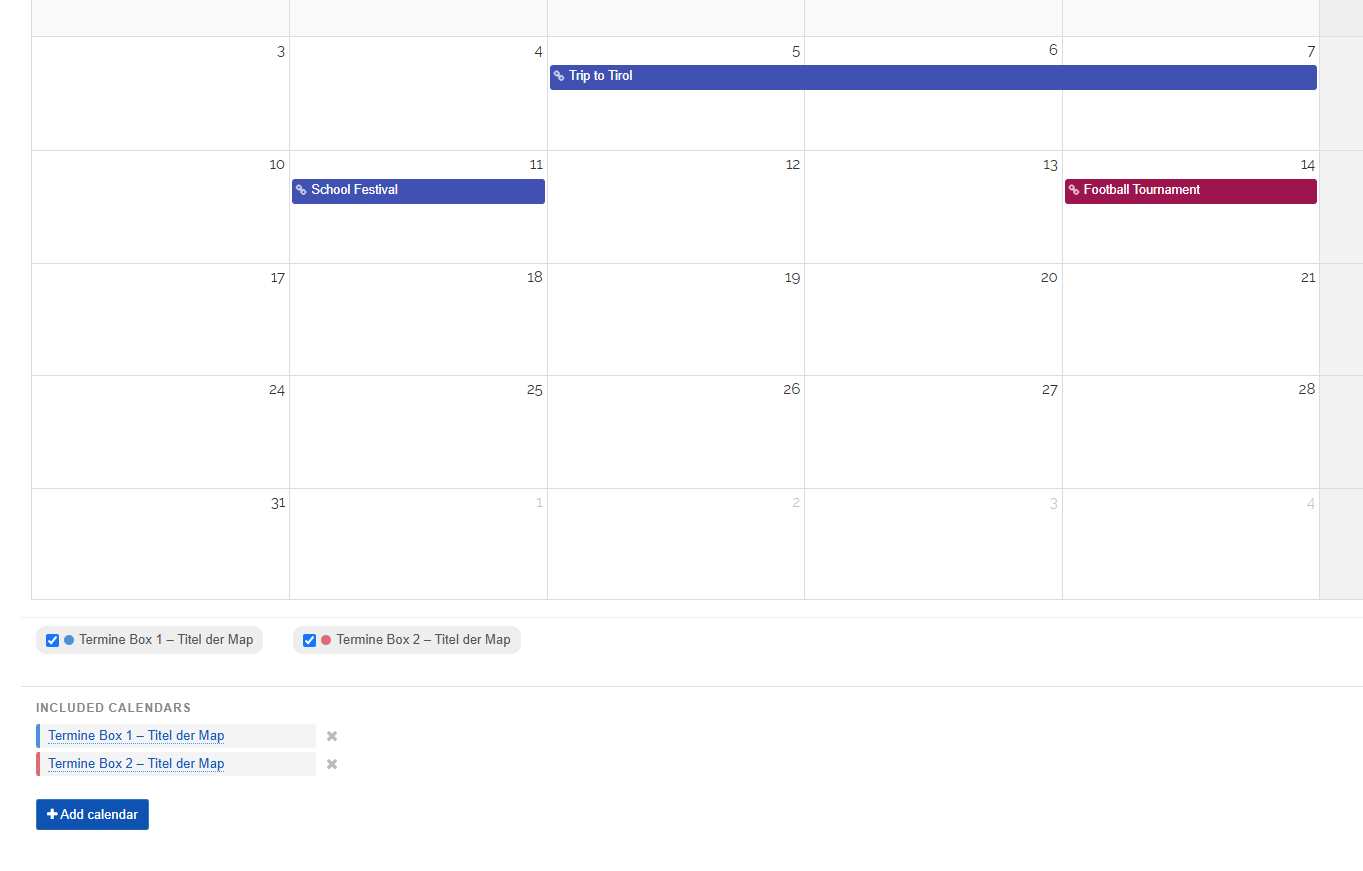
Display of embedded events
-
Embedded events appear in the target calendar together with your own events.
-
Embedded events are maintained in the source calendar. If you change or delete an event there, the change is automatically transferred to all target calendars.
8
Remove an embedding
-
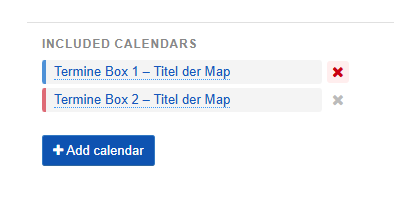
Below the target calendar, you will see the list of all embedded calendars.
-
Click the remove icon there to remove an embedding.
-
The events from the source calendar will then disappear from the target calendar. The source calendar itself remains unchanged.
9
Permissions
-
To embed a calendar, you need the link to the source calendar. A read link is sufficient, because embedded events are only displayed and not edited.
-
Visitors to your map see the embedded events in the target calendar just like your own events.
-
Anyone who wants to edit an event needs edit permission for the source calendar.
4️⃣ Practice & examples3
10
Use cases
-
Central school calendar - One box per class with its own calendar, plus a central calendar that embeds all class calendars. The school administration can see everything at a glance.
-
Exam calendar - Each department maintains its exam dates in its own calendar, and the exam calendar combines them and shows overlaps immediately.
-
Personal teaching calendar - Teachers embed the official school calendar into their own teaching calendar and have holidays, conferences, and personal events in one view.
-
Club calendar - Training times for each team in separate calendars, while the club calendar bundles all events for the board level.
-
Changes in the source calendars are automatically adopted.
11
Step by step: Room bookings
-
A complete practical example with several calendars and one central calendar can be found in the tutorial "Set up room bookings with calendars":
12
Further tutorials
-
Calendar per box - Basics: activate calendars, create events, share, iCalendar link:
-
Personal Calendar - The "My Calendar" page in detail:
-
Calendar as a widget on your phone - Events with synchronization on the home screen: